

Configuration
Obtain a webhook URL
1
Open the target channel
In Microsoft Teams, navigate to the channel you want to receive alerts.
2
Add a connector
Click … next to the channel name → Connectors. Search for Incoming Webhook and click Configure.
3
Name and create the webhook
Give the webhook a name (e.g., “Simplismart Alerts”) and click Create.
4
Copy the URL
Copy the generated webhook URL and click Done.
Add to a contact point
1
Open or create a contact point
Go to Alerting → Contact Points and open an existing contact point or create a new one.
2
Add a Microsoft Teams integration
Click Add Integration and select Microsoft Teams from the Integration dropdown.
3
Fill in the fields
Enter a Label for this integration and paste the Webhook URL you copied from Teams.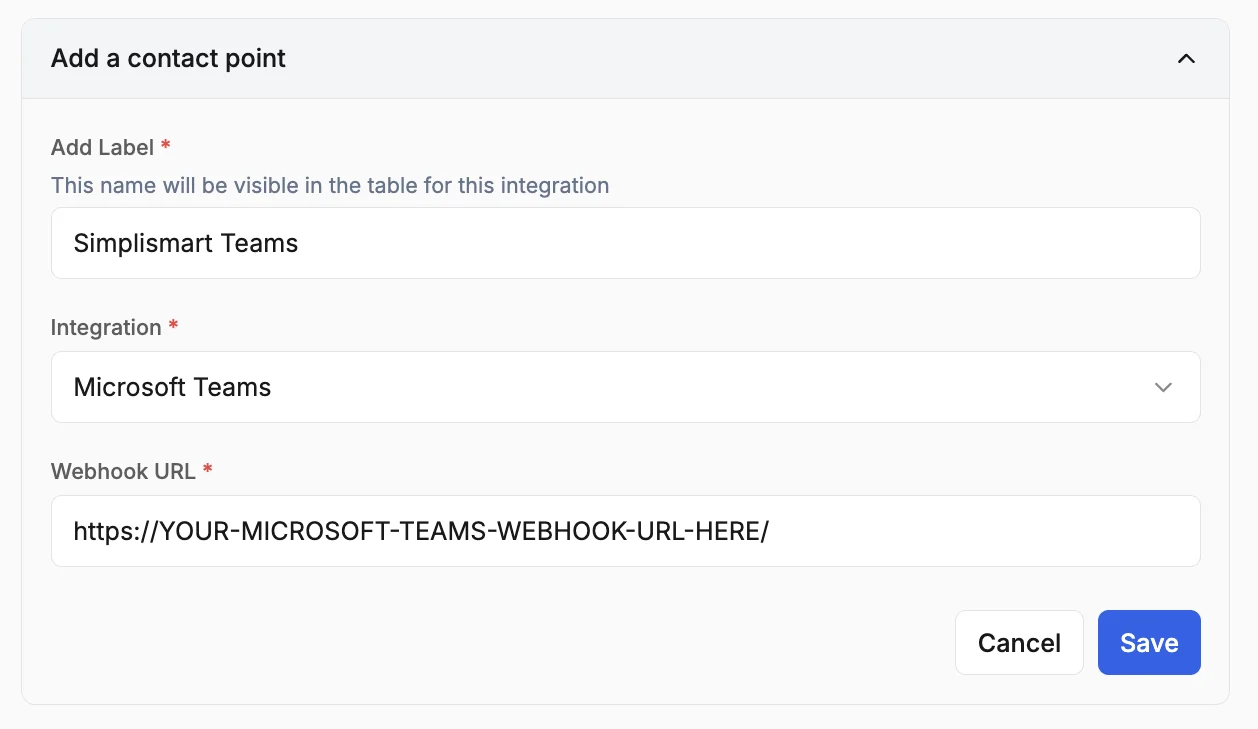
4
Save
Review the configurations and click Save.