Create a contact point
1
Navigate to Contact Points
In the sidebar, go to Alerting and click the Contact Point tab. You’ll see all existing contact points for your organisation. Click Add a Contact Point.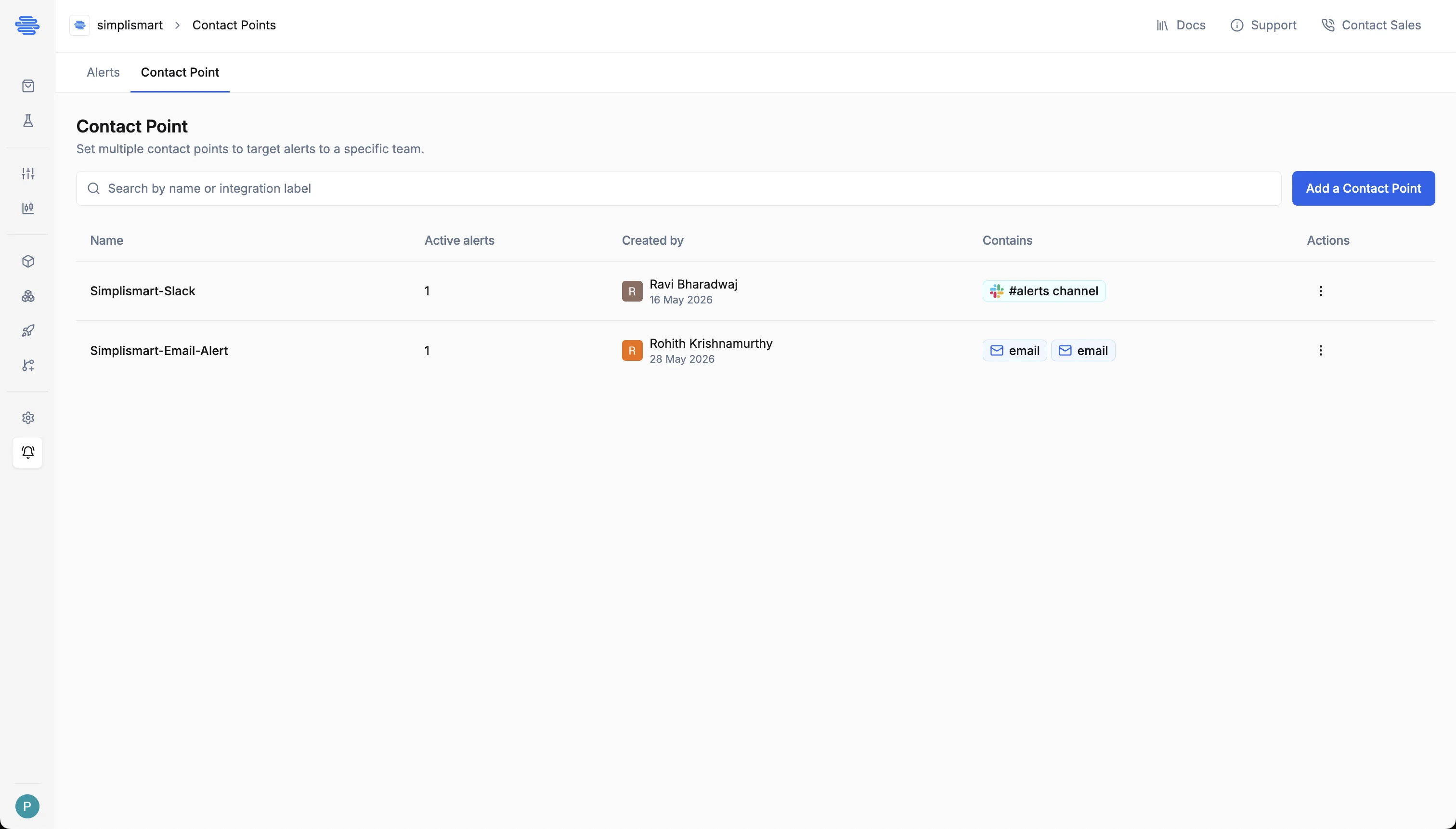
2
Fill in metadata
Provide a unique Name for the contact point and an optional Description for additional context.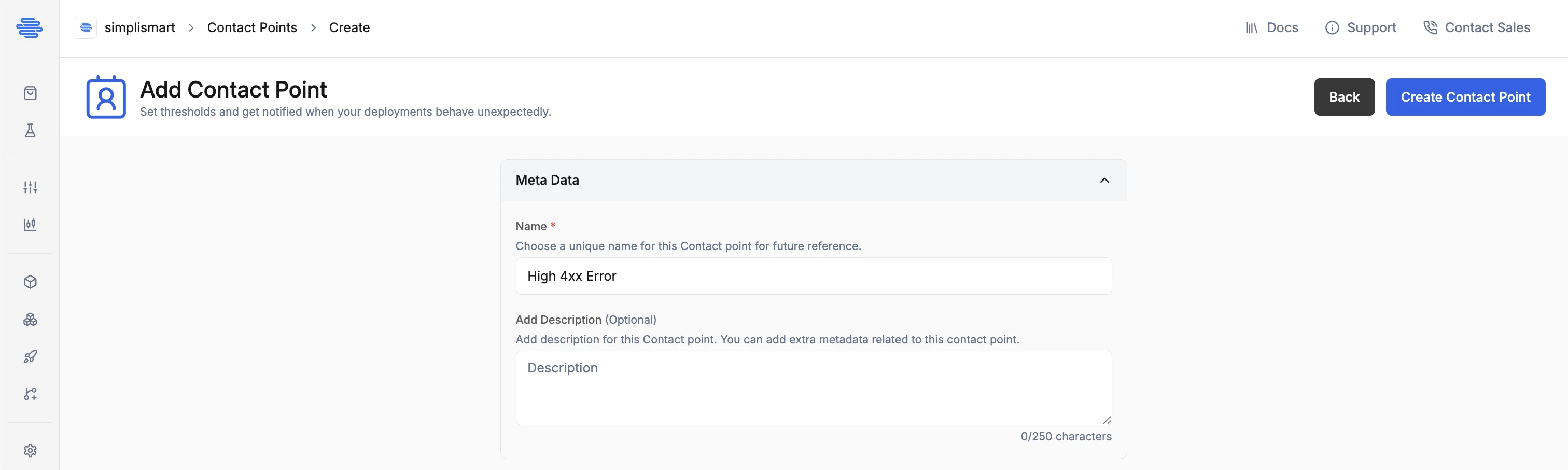
3
Add an integration
Click Add Integration and select a channel type (Email, Slack, Teams, PagerDuty, or VictorOps). Fill in the required fields and click Save. See the Supported channel types section below for detailed setup instructions per channel.You can add multiple integrations to a single contact point, all of them will be notified when an alert fires.
4
Save
Click Create Contact Point.
Supported channel types
Send notifications to one or more email addresses
Slack
Post notifications to a Slack channel via incoming webhook

Microsoft Teams
Post notifications to a Teams channel via incoming webhook

PagerDuty
Create PagerDuty incidents when alerts fire

VictorOps
Send alert notifications to VictorOps (Splunk On-Call) via REST endpoint
Edit a contact point
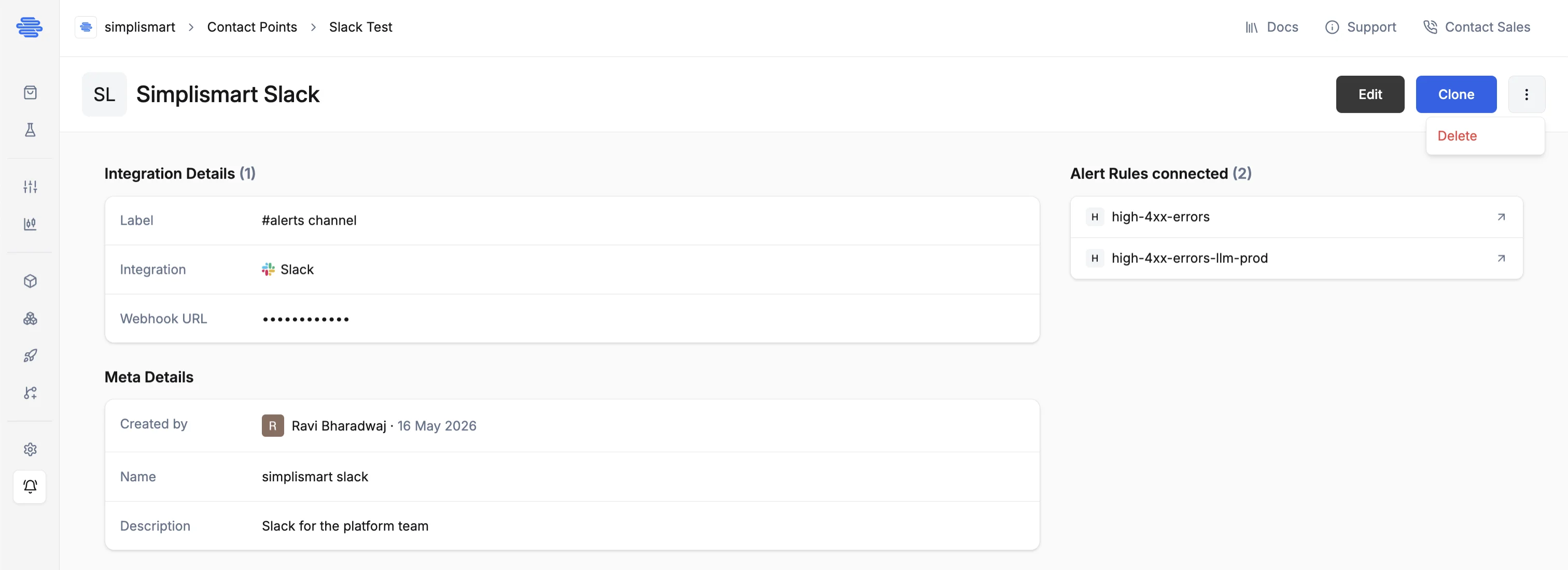
Open the contact point and click Edit in the top-right corner. Update the fields you want to change and save.Delete a contact point
Open the contact point, click the ⋮ menu in the top-right corner, and select Delete. Before deleting, check the Alert Rules connected panel on the right side of the detail page, it lists every alert rule currently using this contact point. A contact point cannot be deleted while it is linked to alert rules. Remove or reassign those rules first, then delete.