

Configuration
Add to a contact point
1
Open or create a contact point
Go to Alerting → Contact Points and open an existing contact point or create a new one.
2
Add a Mail integration
Click Add Integration and select Mail from the Integration dropdown.
3
Fill in the fields
Enter a Label for this integration, a Subject for the email, and the recipient Addresses separated by semicolons.To send a single email to all recipients instead of individual emails, expand Optional Mail settings and check Single Mail.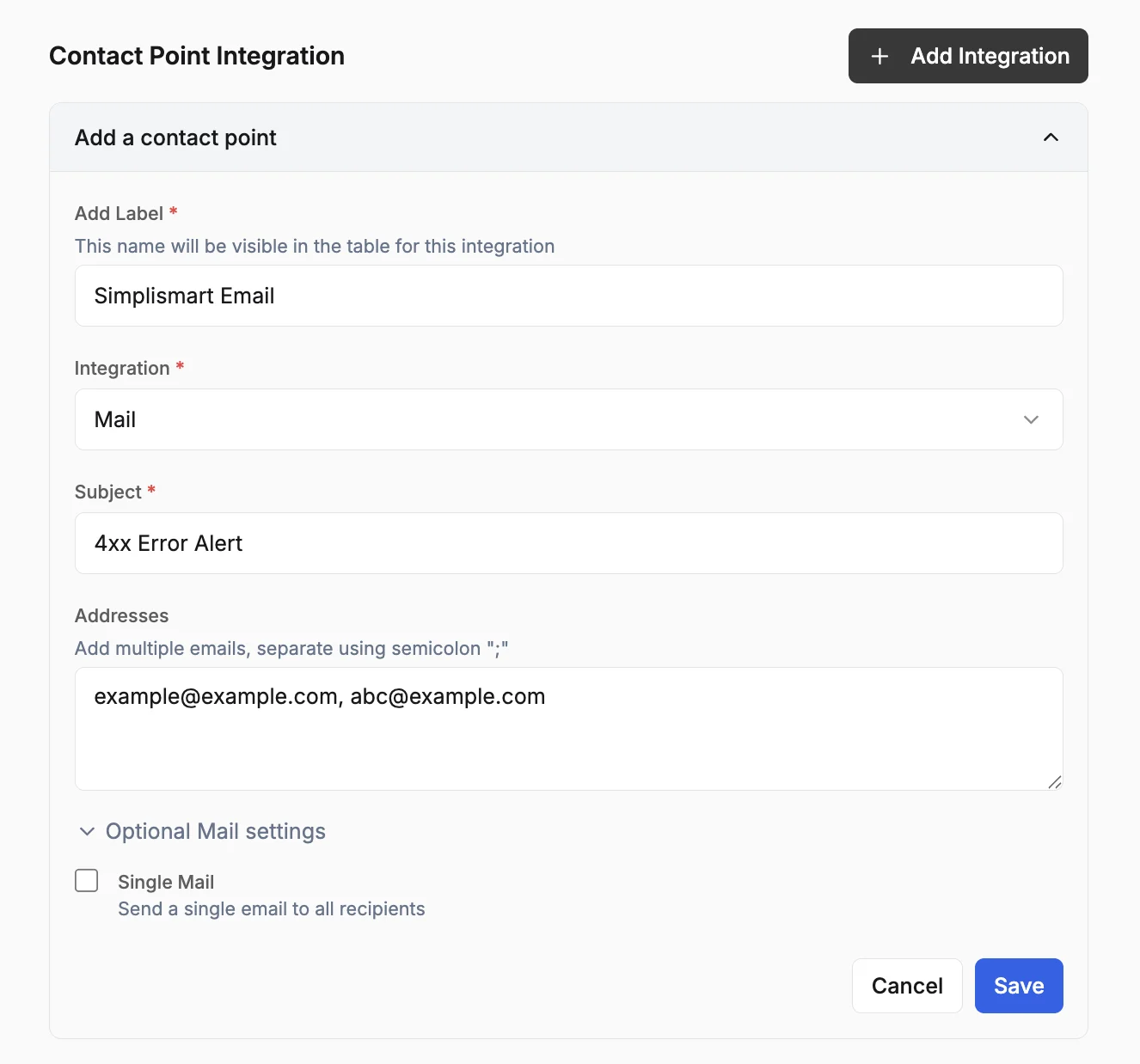
4
Save
Review the configurations and click Save.