

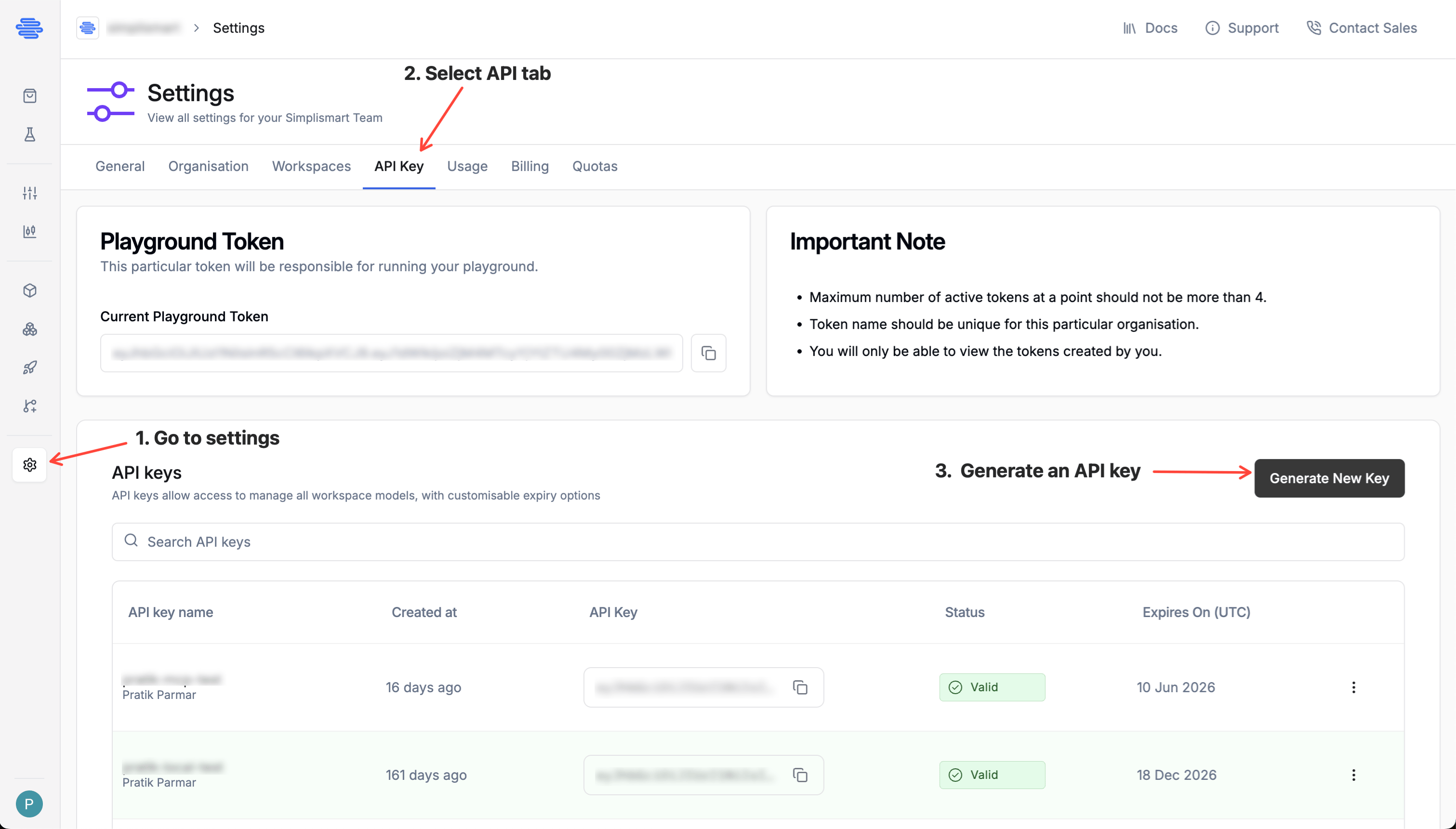
Generating an API Key
- Navigate to Settings -> API Keys in your organisation dashboard.
- Click Generate Key. The Add API Key popup appears.
- Enter a Key Name (e.g.,
prod-inference,ci-pipeline). - Select an Expiration from the dropdown (e.g.,
1 week). The Expires on date is calculated automatically. - Click Generate New Key.
- Copy the key.
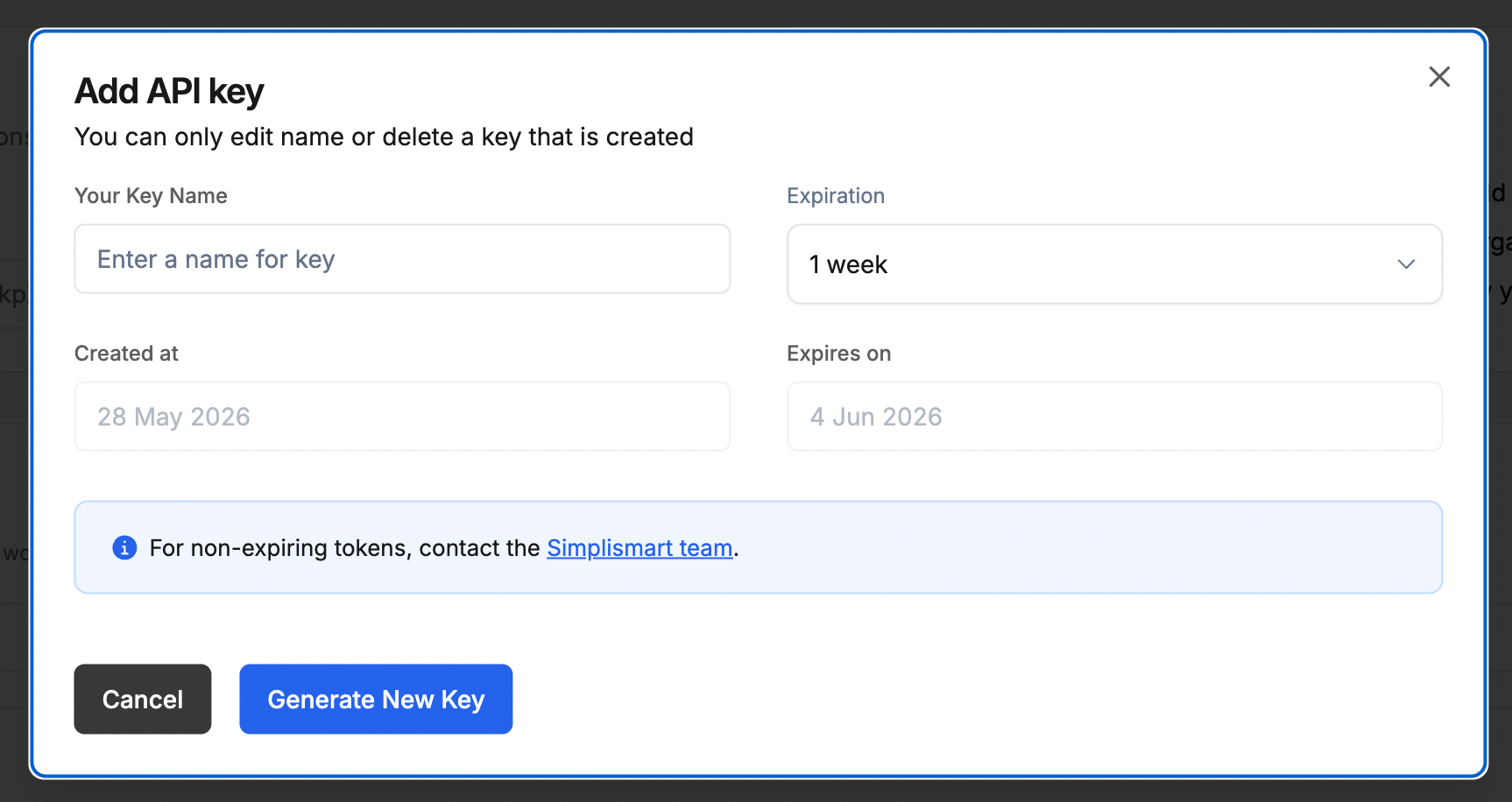
For non-expiring tokens, contact the Simplismart team.
Key Expiry
Each key displays its expiry date in the API Keys table. Keys expire at midnight UTC on the configured date and will return401 Unauthorized after that point. Rotate keys before expiry to avoid service interruption.
Using Your API Key
Pass the API key as a Bearer token in theAuthorization header on every request:
Deleting an API Key
Click the Delete action next to any key in the table to invalidate it immediately. Deleting a key is permanent and any service using it will need to be updated with a new key.Best Practices
- One key per environment: Use separate keys for
dev,staging, andproductionso you can rotate one without affecting others. - Never commit keys to source control: Use environment variables or a secrets manager.
- Set expiry dates: Short-lived keys reduce the impact even if a key is leaked.
- Rotate regularly: Generate a replacement before deleting the old key to avoid downtime.