

Deployment edits are applied as rolling updates to minimize downtime while changes are being applied.
Accessing the Edit Feature
Any successfully deployed model can be edited: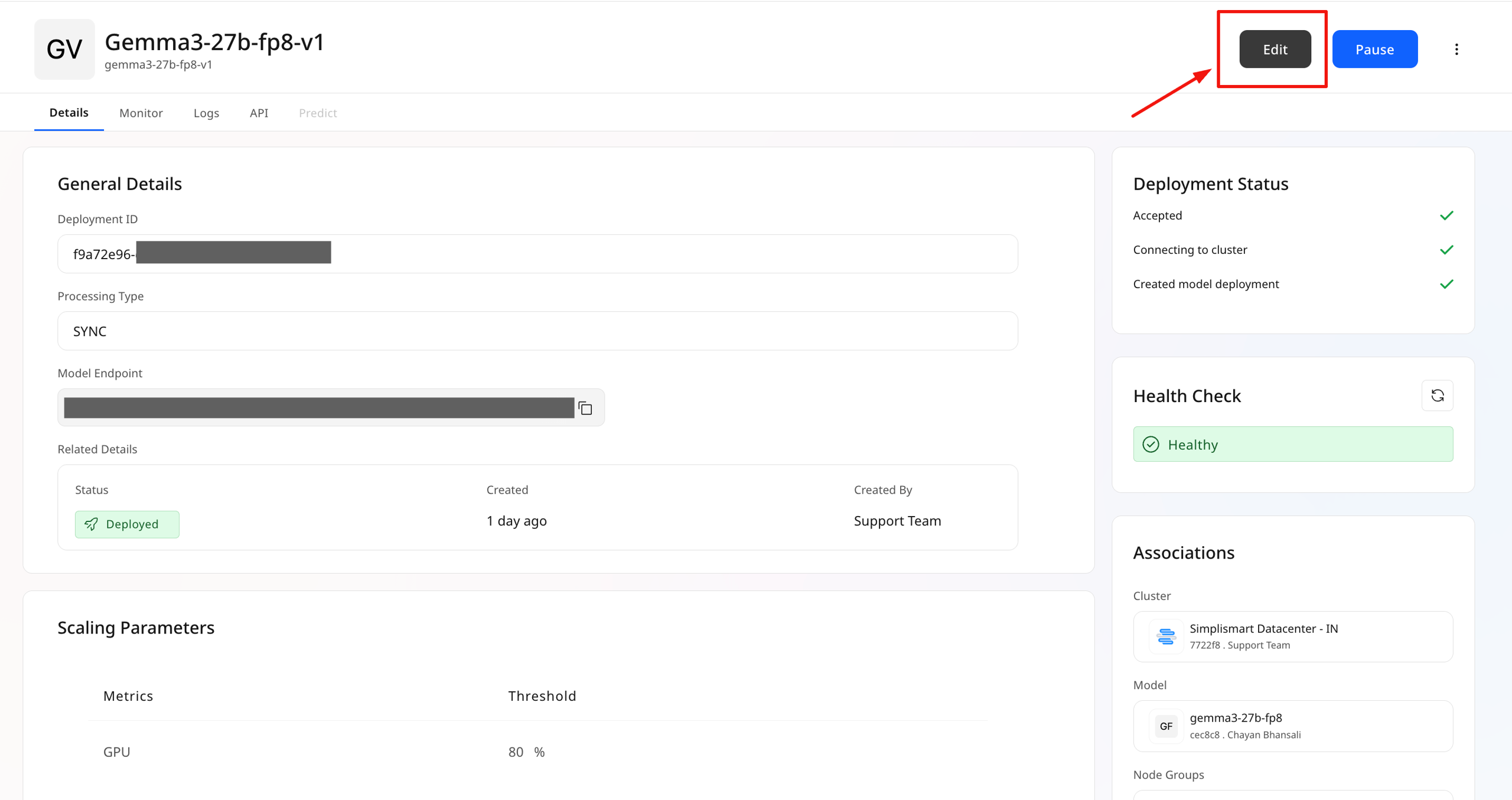
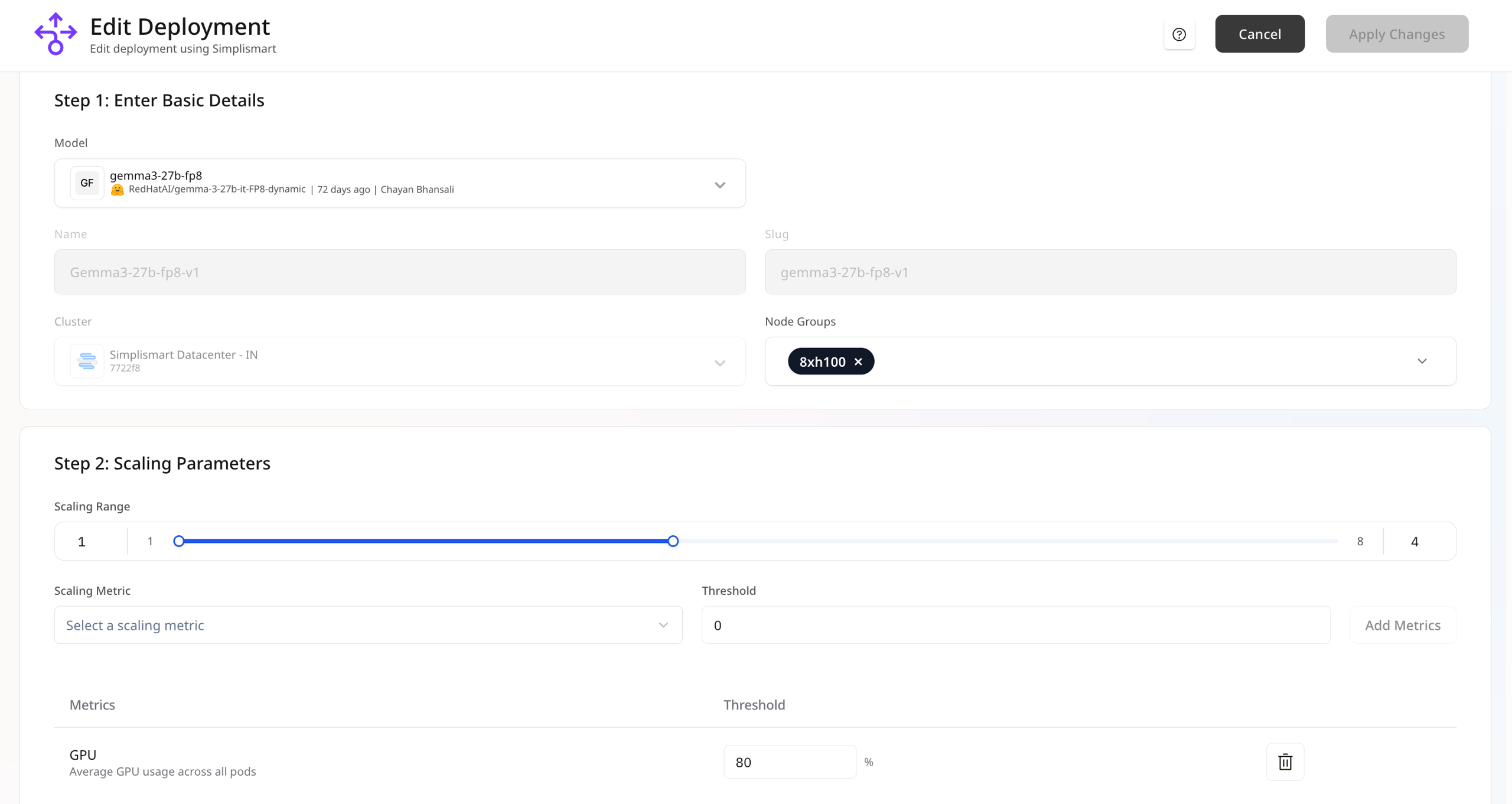
What Can Be Edited
Understanding which parameters are editable helps you plan deployment updates effectively.Editable Parameters
The following parameters can be modified after deployment:Scaling Parameters
Scaling Parameters
All scaling configurations can be updated:
- Scaling Range: Adjust minimum and maximum instance counts
- Scaling Metrics: Add, remove, or modify scaling triggers
- Threshold Values: Change the values that trigger auto-scaling
Model Selection
Model Selection
You can swap the deployed model with important constraints:
- ✅ Can change: Different models of the same type
- ❌ Cannot change: Model type (e.g., LLM to STT)
- ✅ Swap Llama 3.1 8B with Llama 3.1 70B (both LLMs)
- ❌ Swap Llama 3.1 8B with Whisper V3 (different types)
Non-Editable Parameters
The following parameters are locked after deployment creation and cannot be changed:- Deployment Name: The unique identifier for your deployment
- Cloud / Cluster: The infrastructure where the deployment runs
- Processing Type: Sync or Async processing mode
If you need to change non-editable parameters, you’ll need to create a new deployment with the desired configuration.
Update Process
Deployment edits are applied using a rolling update strategy to minimize downtime:Automatic Rollback
The platform includes built-in safety mechanisms:- ✅ Automatic rollback: If an edit fails, the system automatically reverts to the previous working version
- ❌ Manual rollback: Not currently supported after successful edits
- 🔍 Health monitoring: Continuous checks ensure deployment stability