> ## Documentation Index
> Fetch the complete documentation index at: https://docs.simplismart.ai/llms.txt
> Use this file to discover all available pages before exploring further.
# Creating A Training Job
> Fine-tune a Whisper speech-to-text model on the Simplismart platform
## Initiate a New Training Job
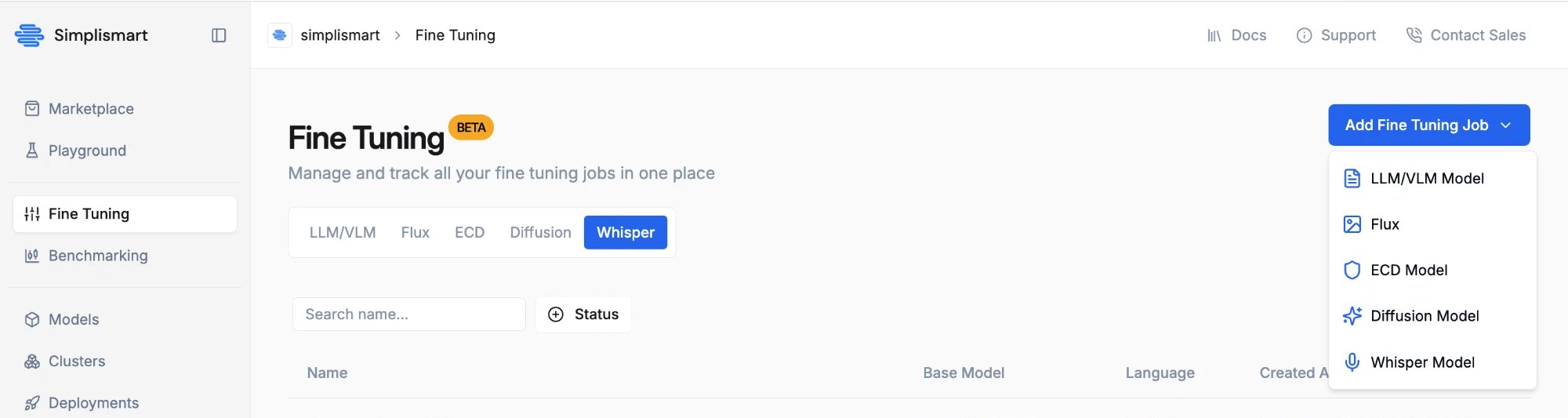
* Navigate to the **My Trainings** section in the platform.
* Click on **Add a Training Job** and select **Whisper** as the model type.
 ## Basic Details and Model Selection
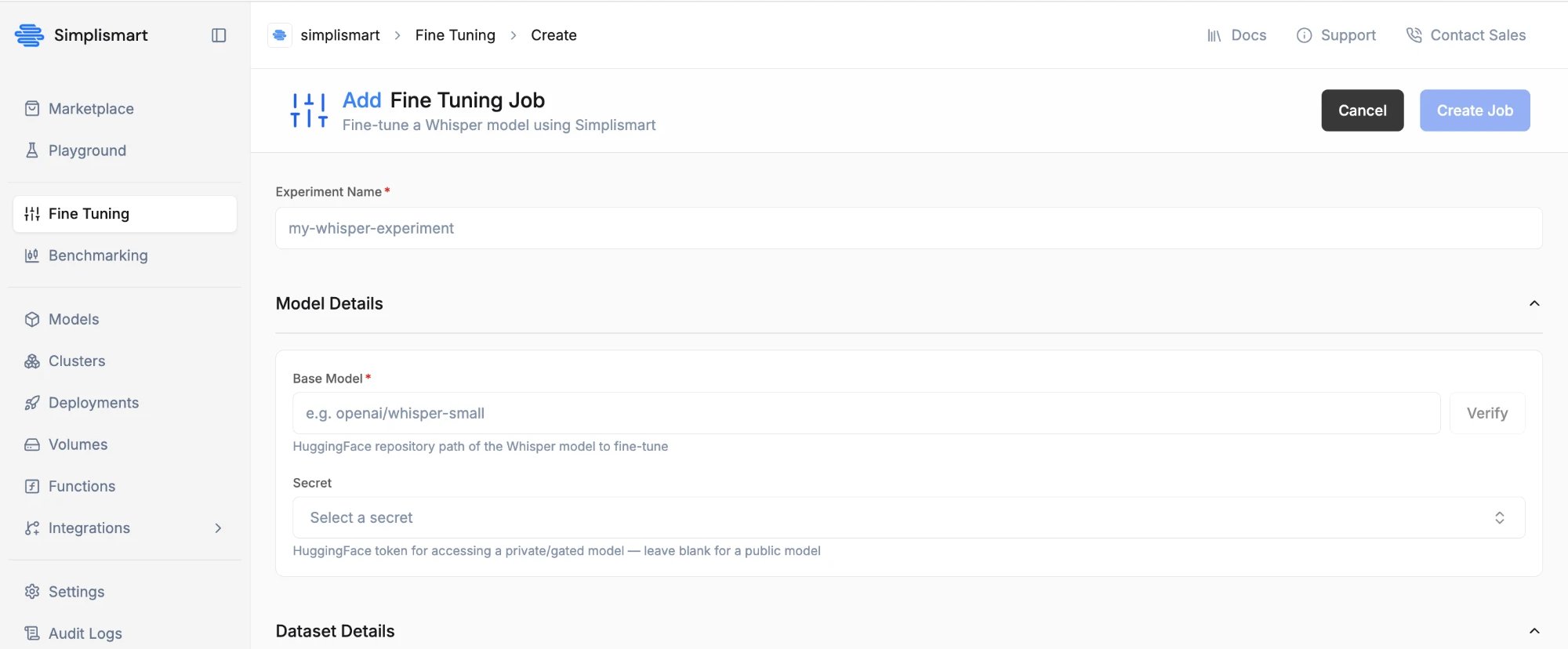
* Provide a name for your experiment.
* Enter the Hugging Face model path of the base Whisper model you wish to fine-tune (for example, `openai/whisper-tiny`).
If the base model is private or gated, you'll need to attach a Hugging Face secret with access to it.
## Basic Details and Model Selection
* Provide a name for your experiment.
* Enter the Hugging Face model path of the base Whisper model you wish to fine-tune (for example, `openai/whisper-tiny`).
If the base model is private or gated, you'll need to attach a Hugging Face secret with access to it.
 ## Dataset Configuration
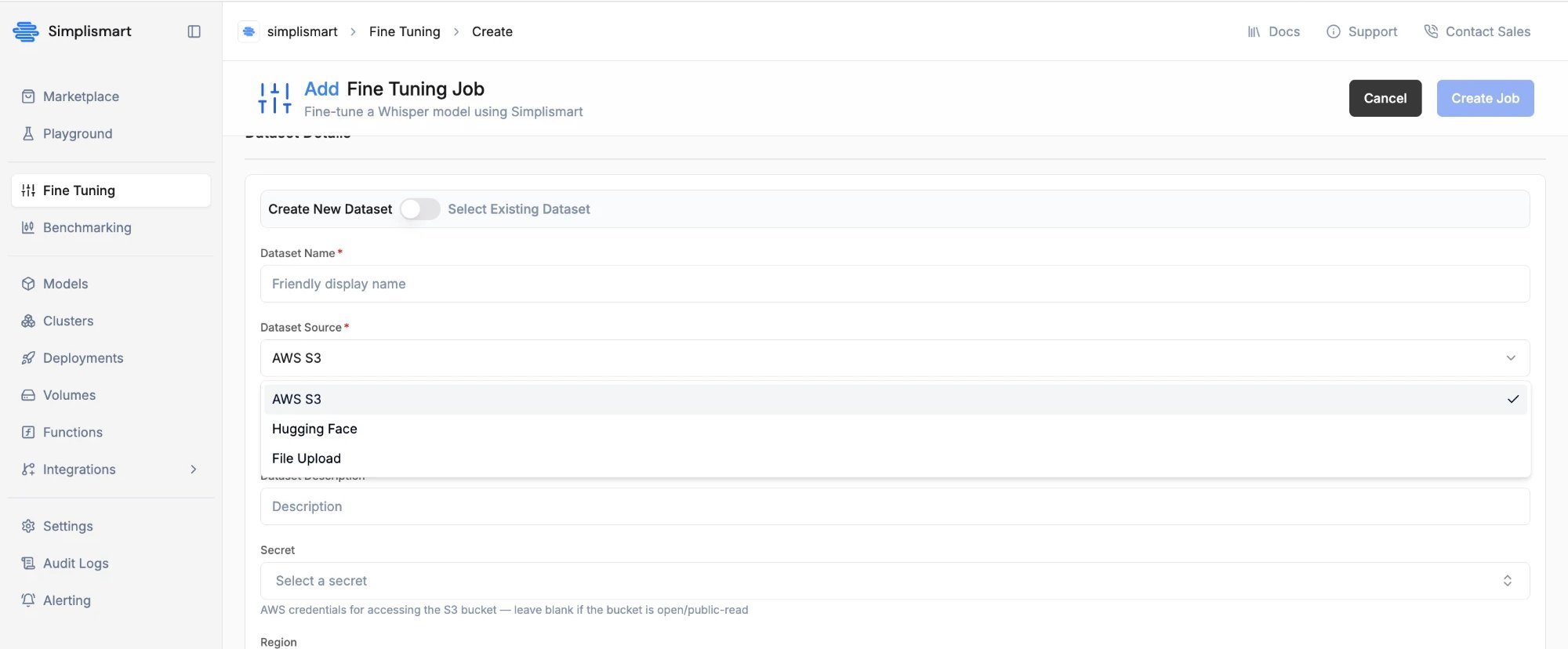
Provide a dataset in one of three ways:
* **AWS S3** — point to a dataset file already in an S3 bucket.
* **Hugging Face** — point to an existing Hugging Face dataset.
* **File Upload** — upload a dataset file directly.
## Dataset Configuration
Provide a dataset in one of three ways:
* **AWS S3** — point to a dataset file already in an S3 bucket.
* **Hugging Face** — point to an existing Hugging Face dataset.
* **File Upload** — upload a dataset file directly.
 * Supported file formats are **CSV** and **JSONL** (not shown for **Hugging Face** — it's inferred from the dataset).
* You need an audio column and a text column — e.g. `audio`, `text`.
* For **CSV**, map them under **Audio Column** / **Text Column**. For **JSONL**, map them under **Audio Key** / **Text Key**.
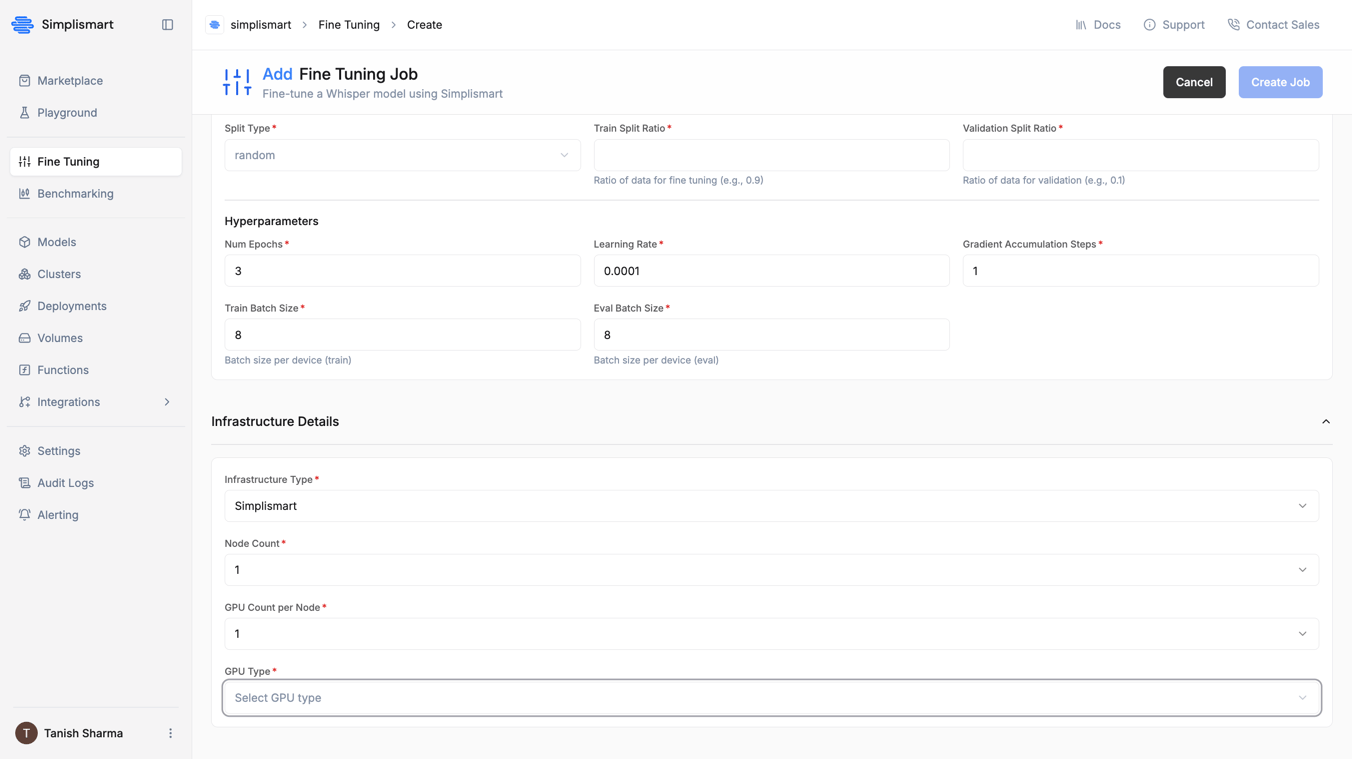
* For **AWS S3** and **File Upload**, set **Train Split Ratio** / **Eval Split Ratio** if your data isn't pre-split.
* For **Hugging Face**, use **Train Split** / **Eval Split** to pass an HF split expression instead (e.g. `test.clean` / `test.other`).
* For **AWS S3**, if the bucket isn't publicly accessible, attach a secret with the right credentials.
* For **File Upload**, attaching a secret marks the dataset as private — it doesn't change how or where the file is uploaded.
## Select Training Parameters
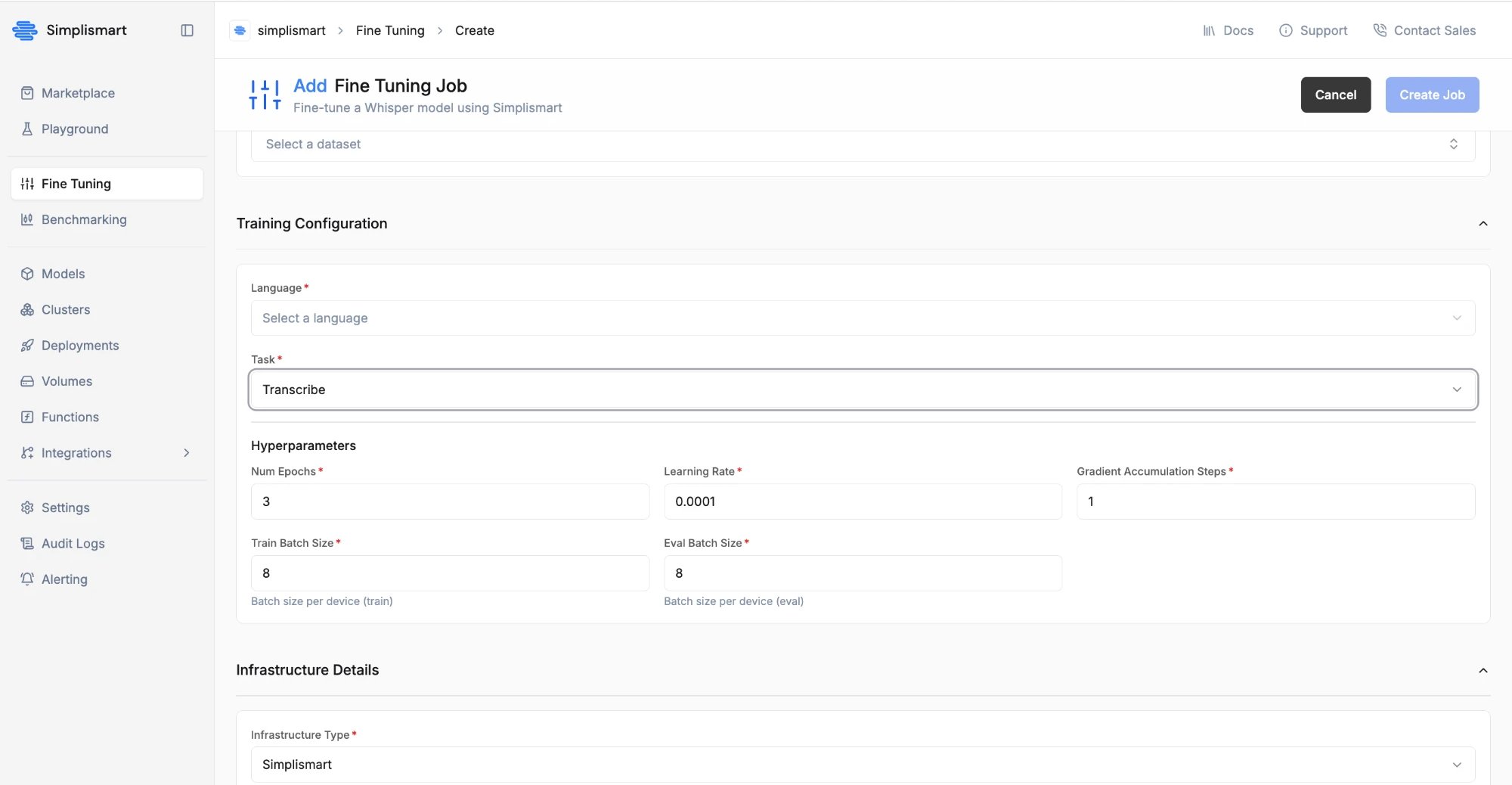
* Choose the **Language** and the **Task** (**Transcribe** or **Translate**).
Currently supported: English and Indian languages.
Update the training parameters based on your requirements for the training job:
**Number of Epochs:** Total number of times the model trains on the complete dataset.
**Learning Rate:** Controls how much the model adjusts its weights during training.
**Train / Eval Batch Size:** Number of samples processed together per training/evaluation step. Available GPU RAM dictates the maximum batch size.
**Gradient Accumulation Steps:** Number of steps to accumulate gradients before updating model weights — useful for simulating a larger effective batch size on limited GPU memory.
* Supported file formats are **CSV** and **JSONL** (not shown for **Hugging Face** — it's inferred from the dataset).
* You need an audio column and a text column — e.g. `audio`, `text`.
* For **CSV**, map them under **Audio Column** / **Text Column**. For **JSONL**, map them under **Audio Key** / **Text Key**.
* For **AWS S3** and **File Upload**, set **Train Split Ratio** / **Eval Split Ratio** if your data isn't pre-split.
* For **Hugging Face**, use **Train Split** / **Eval Split** to pass an HF split expression instead (e.g. `test.clean` / `test.other`).
* For **AWS S3**, if the bucket isn't publicly accessible, attach a secret with the right credentials.
* For **File Upload**, attaching a secret marks the dataset as private — it doesn't change how or where the file is uploaded.
## Select Training Parameters
* Choose the **Language** and the **Task** (**Transcribe** or **Translate**).
Currently supported: English and Indian languages.
Update the training parameters based on your requirements for the training job:
**Number of Epochs:** Total number of times the model trains on the complete dataset.
**Learning Rate:** Controls how much the model adjusts its weights during training.
**Train / Eval Batch Size:** Number of samples processed together per training/evaluation step. Available GPU RAM dictates the maximum batch size.
**Gradient Accumulation Steps:** Number of steps to accumulate gradients before updating model weights — useful for simulating a larger effective batch size on limited GPU memory.
 ## Select Infrastructure
Choose the GPU type, node count, and GPUs per node for your training job. Training runs on Simplismart-managed cloud infrastructure.
## Select Infrastructure
Choose the GPU type, node count, and GPUs per node for your training job. Training runs on Simplismart-managed cloud infrastructure.
 ## Start and Monitor the Training Job
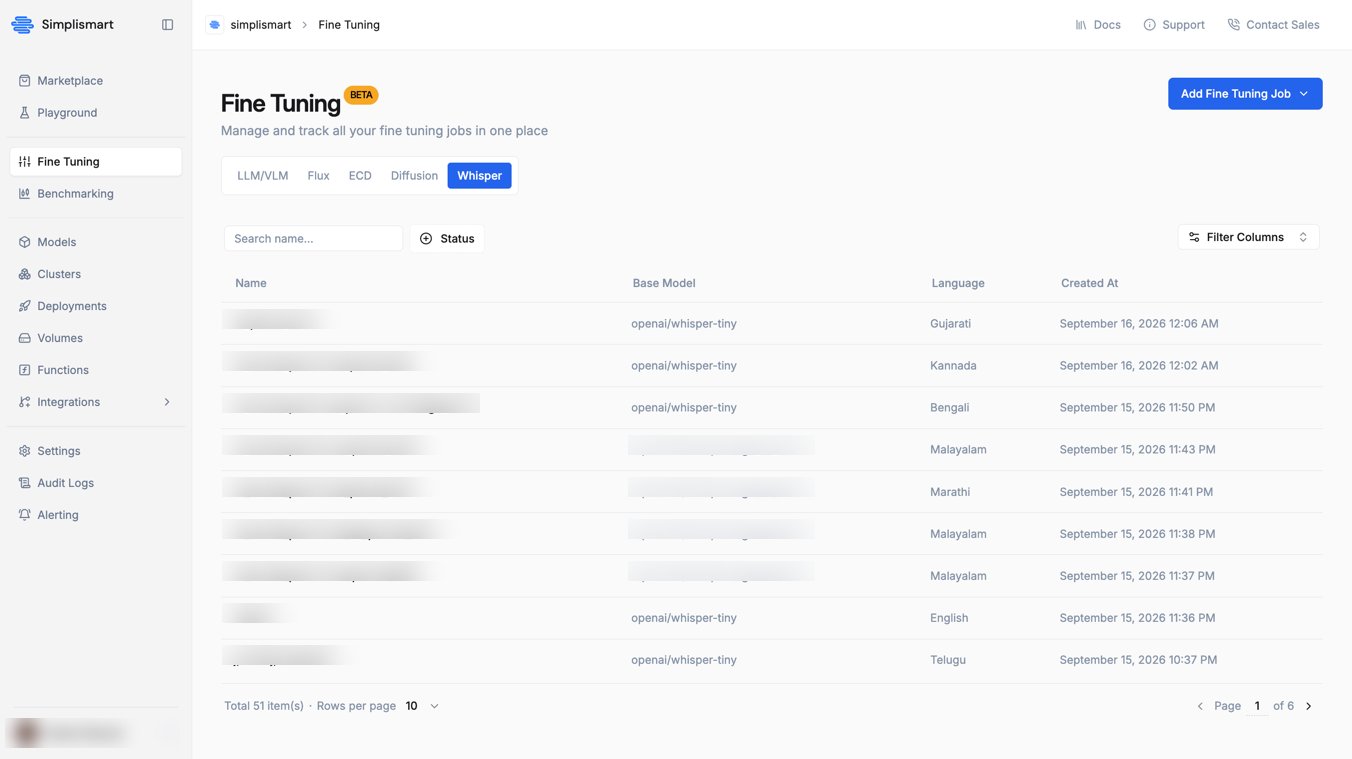
Once the configuration is updated, start the training job and monitor its progress in the **Recent Jobs** section of the UI. Keep track of metrics, logs, and status to ensure the training meets your requirements.
## Start and Monitor the Training Job
Once the configuration is updated, start the training job and monitor its progress in the **Recent Jobs** section of the UI. Keep track of metrics, logs, and status to ensure the training meets your requirements.
 ## Compile and Deploy Your Model
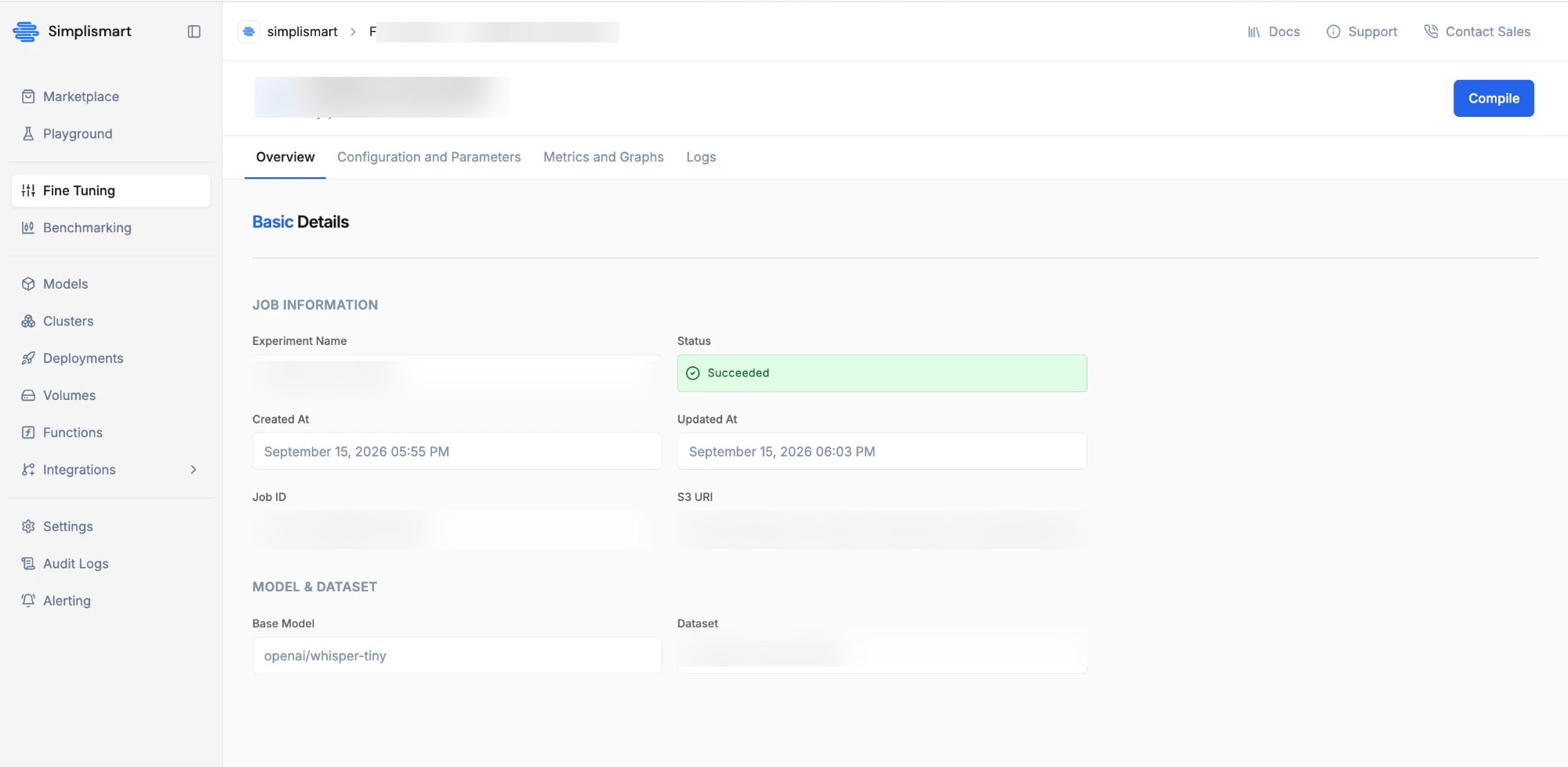
Once your job succeeds, a **Compile** button appears on the job. Clicking it takes you to the [**Add Model**](/model-suite/optimise-a-model) page with your fine-tuned model already pre-filled as the source.
## Compile and Deploy Your Model
Once your job succeeds, a **Compile** button appears on the job. Clicking it takes you to the [**Add Model**](/model-suite/optimise-a-model) page with your fine-tuned model already pre-filled as the source.
 From there:
* Choose the optimization infrastructure and configuration for the model — refer to the [Add Model](/model-suite/optimise-a-model) guide for details on these options.
* Click **Add Model** to save it to your [**My Models**](https://app.simplismart.ai/my-models) section.
* Once saved, deploy it via the Simplismart Model Suite — see [Creating a Deployment](/model-suite/deployments/creating-a-deployment) for the deployment steps.
From there:
* Choose the optimization infrastructure and configuration for the model — refer to the [Add Model](/model-suite/optimise-a-model) guide for details on these options.
* Click **Add Model** to save it to your [**My Models**](https://app.simplismart.ai/my-models) section.
* Once saved, deploy it via the Simplismart Model Suite — see [Creating a Deployment](/model-suite/deployments/creating-a-deployment) for the deployment steps.