> ## Documentation Index
> Fetch the complete documentation index at: https://docs.simplismart.ai/llms.txt
> Use this file to discover all available pages before exploring further.
# Microsoft Teams
> Post alert notifications to a Microsoft Teams channel via incoming webhook
The Microsoft Teams integration posts notifications to a channel using a Teams incoming webhook connector.
## Configuration
| Field | Required | Description |
| --------------- | -------- | ---------------------------------------------------------------------- |
| **Label** | Yes | A display name for this integration, visible in the integrations table |
| **Webhook URL** | Yes | Incoming webhook URL from your Teams channel connector |
## Obtain a webhook URL
In Microsoft Teams, navigate to the channel you want to receive alerts.
Click **...** next to the channel name → **Connectors**. Search for **Incoming Webhook** and click **Configure**.
Give the webhook a name (e.g., "Simplismart Alerts") and click **Create**.
Copy the generated webhook URL and click **Done**.
## Add to a contact point
Go to **Alerting** → **Contact Points** and open an existing contact point or create a new one.
Click **Add Integration** and select **Microsoft Teams** from the **Integration** dropdown.
Enter a **Label** for this integration and paste the **Webhook URL** you copied from Teams.
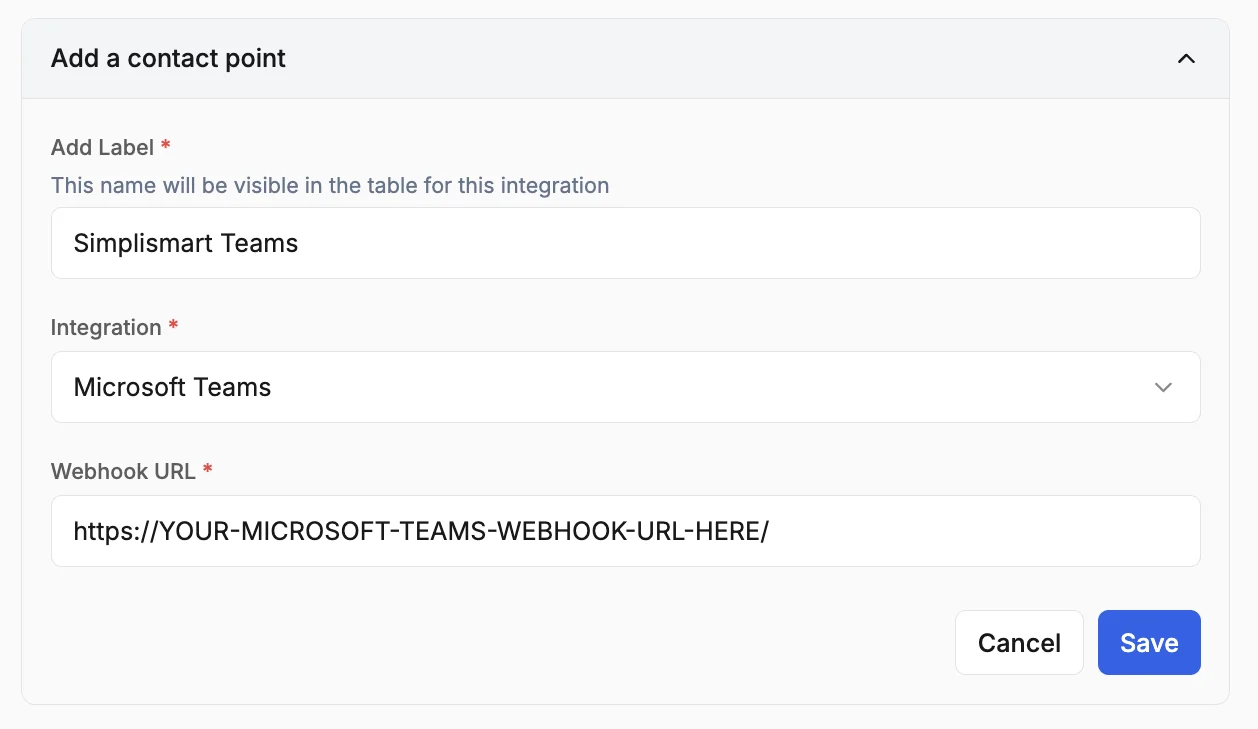 Review the configurations and click **Save**.