> ## Documentation Index
> Fetch the complete documentation index at: https://docs.simplismart.ai/llms.txt
> Use this file to discover all available pages before exploring further.
# Create an Alert Rule
> Learn how to set up alert rules to monitor your deployments and get notified when thresholds are breached
An alert rule monitors a deployment metric against a defined condition. When the condition is met for long enough, the rule transitions to `firing` and sends notifications through the attached [contact points](/observability/alerting/contact-points).
You need at least one [contact point](/observability/alerting/contact-points) before creating an alert rule. Set one up first if you haven't already.
## Create an alert rule
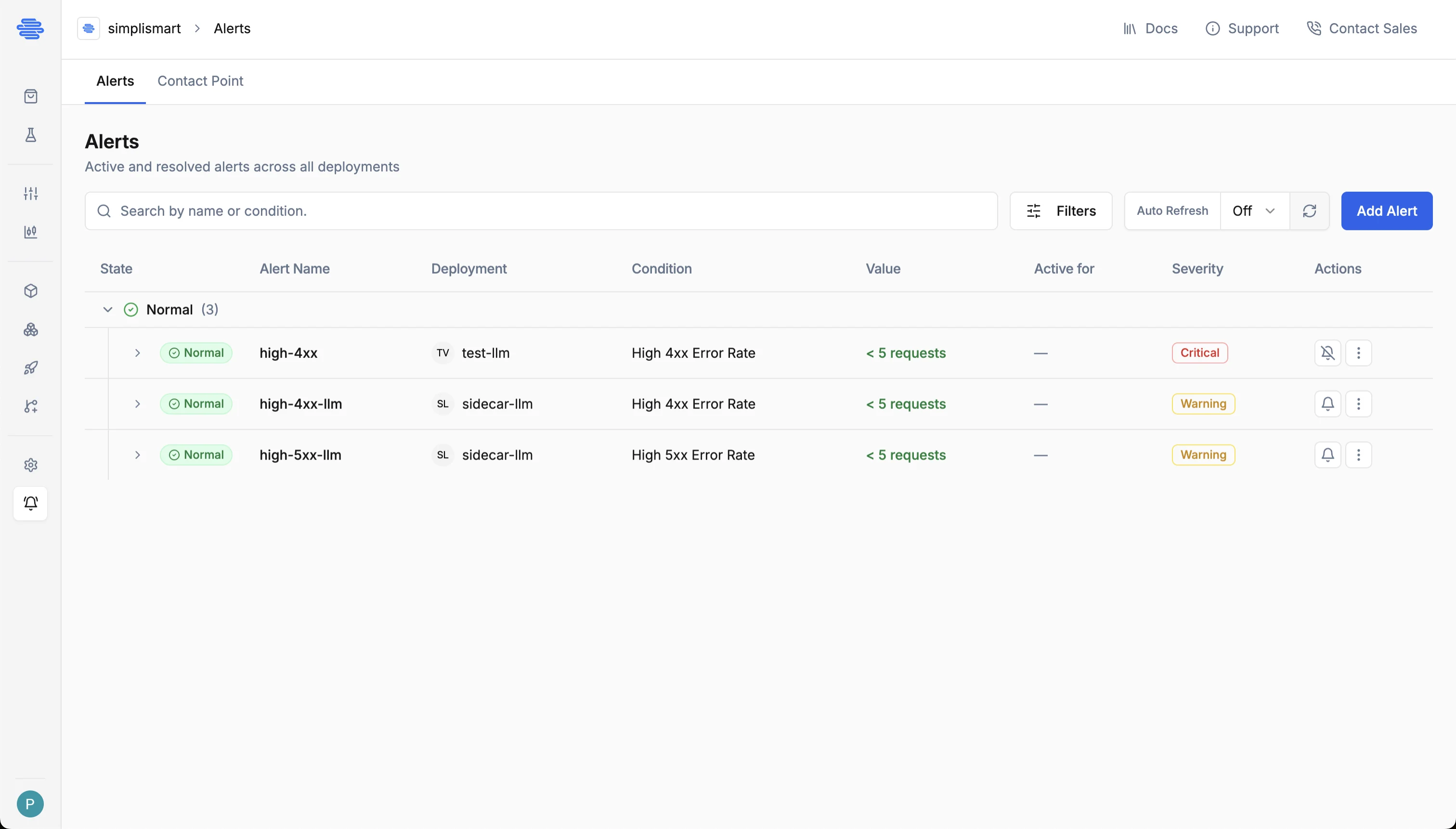
In the sidebar, go to **Alerting**. You'll see all alerts across your deployments. Click **Add Alert** to create a new rule.
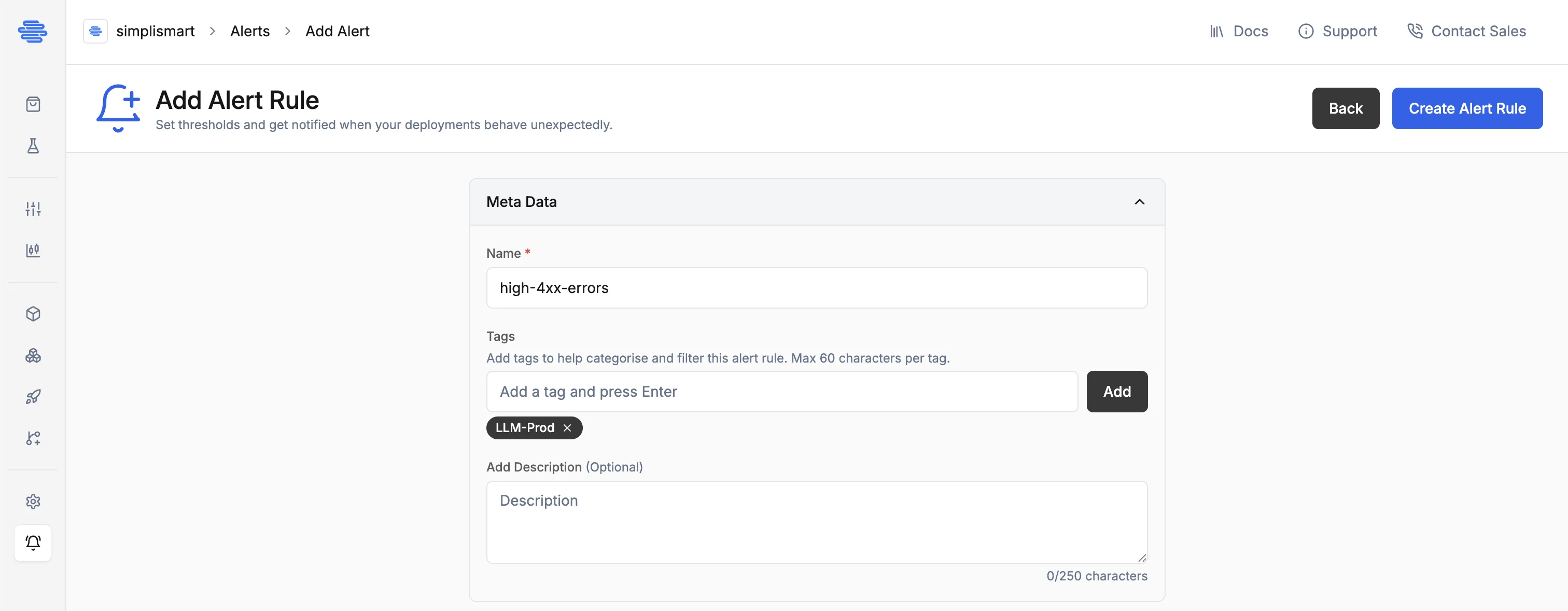
 Provide a **Name** for the alert rule. Optionally add **Tags** (up to 60 characters each) to help categorise and filter rules, and a **Description** for additional context.
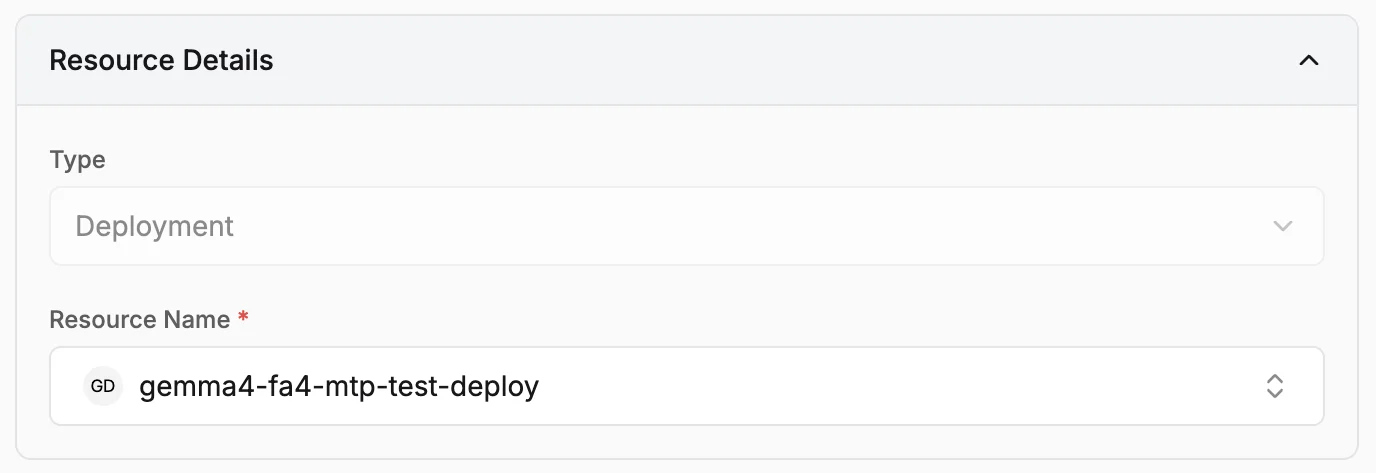
 In the **Resource Details** section, the **Type** is set to Deployment. Use the **Resource Name** dropdown to search for and select the deployment you want to monitor.
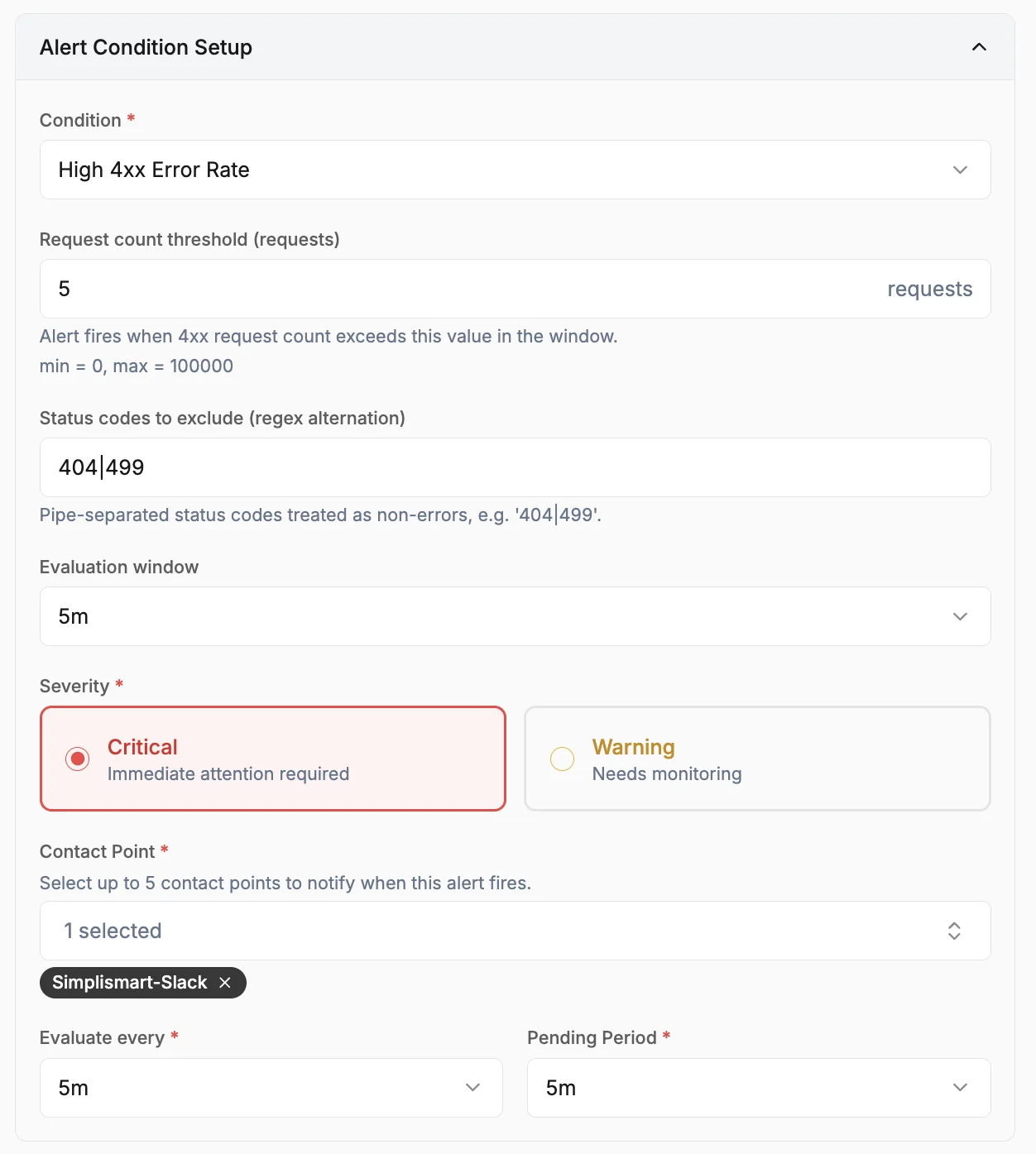
 In the **Alert Condition Setup** section:
* **Condition**: Select a monitoring condition (e.g., High 4xx Error Rate). The available conditions are filtered by your deployment's model type.
* **Parameters**: Fill in the condition's parameters such as thresholds, exclusion patterns, and evaluation window. Each field shows its unit, valid range, and a description.
* **Severity**: Choose **Critical** (immediate attention required) or **Warning** (needs monitoring).
* **Contact Point**: Select the [contact points](/observability/alerting/contact-points) to notify when this rule fires. At least one contact point is required to activate the alert; you can add up to 5.
* **Evaluate every**: How often Grafana evaluates the rule (e.g., `5m`).
* **Pending Period**: How long the condition must be continuously true before the alert transitions from `pending` to `firing`. Use this to suppress noise from transient spikes.
In the **Alert Condition Setup** section:
* **Condition**: Select a monitoring condition (e.g., High 4xx Error Rate). The available conditions are filtered by your deployment's model type.
* **Parameters**: Fill in the condition's parameters such as thresholds, exclusion patterns, and evaluation window. Each field shows its unit, valid range, and a description.
* **Severity**: Choose **Critical** (immediate attention required) or **Warning** (needs monitoring).
* **Contact Point**: Select the [contact points](/observability/alerting/contact-points) to notify when this rule fires. At least one contact point is required to activate the alert; you can add up to 5.
* **Evaluate every**: How often Grafana evaluates the rule (e.g., `5m`).
* **Pending Period**: How long the condition must be continuously true before the alert transitions from `pending` to `firing`. Use this to suppress noise from transient spikes.
 Click **Create Alert Rule**. The rule is provisioned in Grafana and begins evaluating on the next interval.
## Alert Details Page
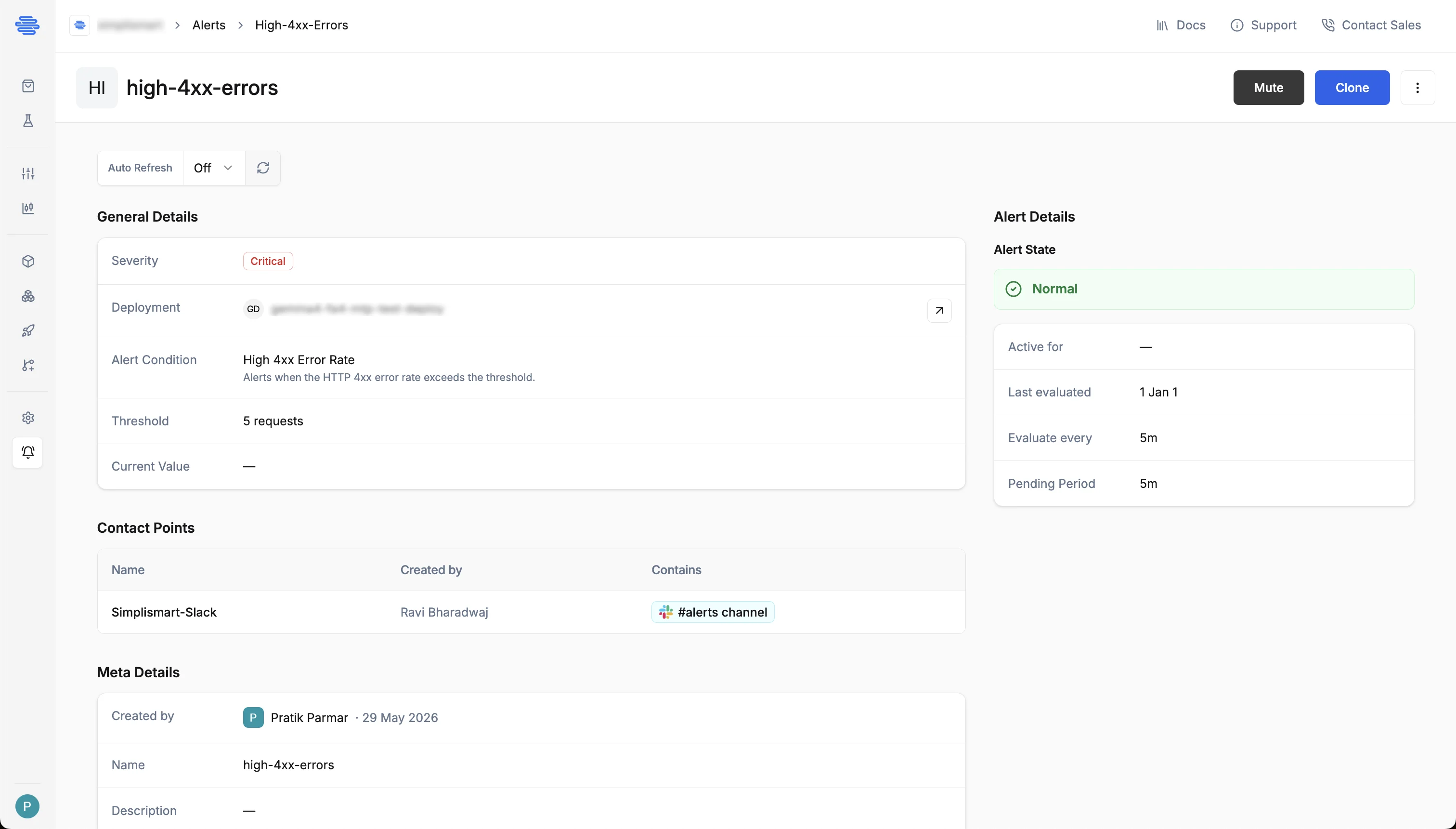
Click any alert rule in the list to open its detail page. The page shows:
* **General Details**: Severity, deployment, alert condition, threshold, and current value
* **Contact Points**: The notification channels attached to this rule.
* **Meta Details**: Creator, name, and description
* **Alert State** panel: Current state, last evaluation time, evaluation interval, and pending period
Click **Create Alert Rule**. The rule is provisioned in Grafana and begins evaluating on the next interval.
## Alert Details Page
Click any alert rule in the list to open its detail page. The page shows:
* **General Details**: Severity, deployment, alert condition, threshold, and current value
* **Contact Points**: The notification channels attached to this rule.
* **Meta Details**: Creator, name, and description
* **Alert State** panel: Current state, last evaluation time, evaluation interval, and pending period
 ## Alert states
| State | Description |
| --------- | --------------------------------------------------------------------------------------- |
| `normal` | The condition is not met; the deployment is within expected bounds. |
| `pending` | The condition is met but the pending period has not elapsed yet. |
| `firing` | The condition has been sustained past the pending period; notifications are being sent. |
| `nodata` | No metric data is being received from the deployment. |
| `error` | The rule evaluation failed due to a query or configuration problem. |
## Mute an alert rule
Muting suppresses notifications for a rule without deleting it. A muted rule continues to evaluate and its state is still visible in the UI, but no notifications are sent.
To mute a rule, open the alert rule detail page and click **Mute**. To resume notifications, click **Unmute**.
## Edit an alert rule
Open the rule, make changes, and save. A confirmation modal shows the full diff of your changes before they are applied.
The following fields can be updated after creation: description, parameters, severity, evaluation interval, pending period, contact points, tags, and enabled state.
The **condition** and **deployment** of an existing rule cannot be changed. To monitor a different metric or deployment, create a new rule.
## Delete an alert rule
Open the rule, click the **⋮** menu, and select **Delete**. This removes the rule from Simplismart.
## Alert states
| State | Description |
| --------- | --------------------------------------------------------------------------------------- |
| `normal` | The condition is not met; the deployment is within expected bounds. |
| `pending` | The condition is met but the pending period has not elapsed yet. |
| `firing` | The condition has been sustained past the pending period; notifications are being sent. |
| `nodata` | No metric data is being received from the deployment. |
| `error` | The rule evaluation failed due to a query or configuration problem. |
## Mute an alert rule
Muting suppresses notifications for a rule without deleting it. A muted rule continues to evaluate and its state is still visible in the UI, but no notifications are sent.
To mute a rule, open the alert rule detail page and click **Mute**. To resume notifications, click **Unmute**.
## Edit an alert rule
Open the rule, make changes, and save. A confirmation modal shows the full diff of your changes before they are applied.
The following fields can be updated after creation: description, parameters, severity, evaluation interval, pending period, contact points, tags, and enabled state.
The **condition** and **deployment** of an existing rule cannot be changed. To monitor a different metric or deployment, create a new rule.
## Delete an alert rule
Open the rule, click the **⋮** menu, and select **Delete**. This removes the rule from Simplismart.