> ## Documentation Index
> Fetch the complete documentation index at: https://docs.simplismart.ai/llms.txt
> Use this file to discover all available pages before exploring further.
# Your Organisation
> Manage your organisation(s) and team members within this section
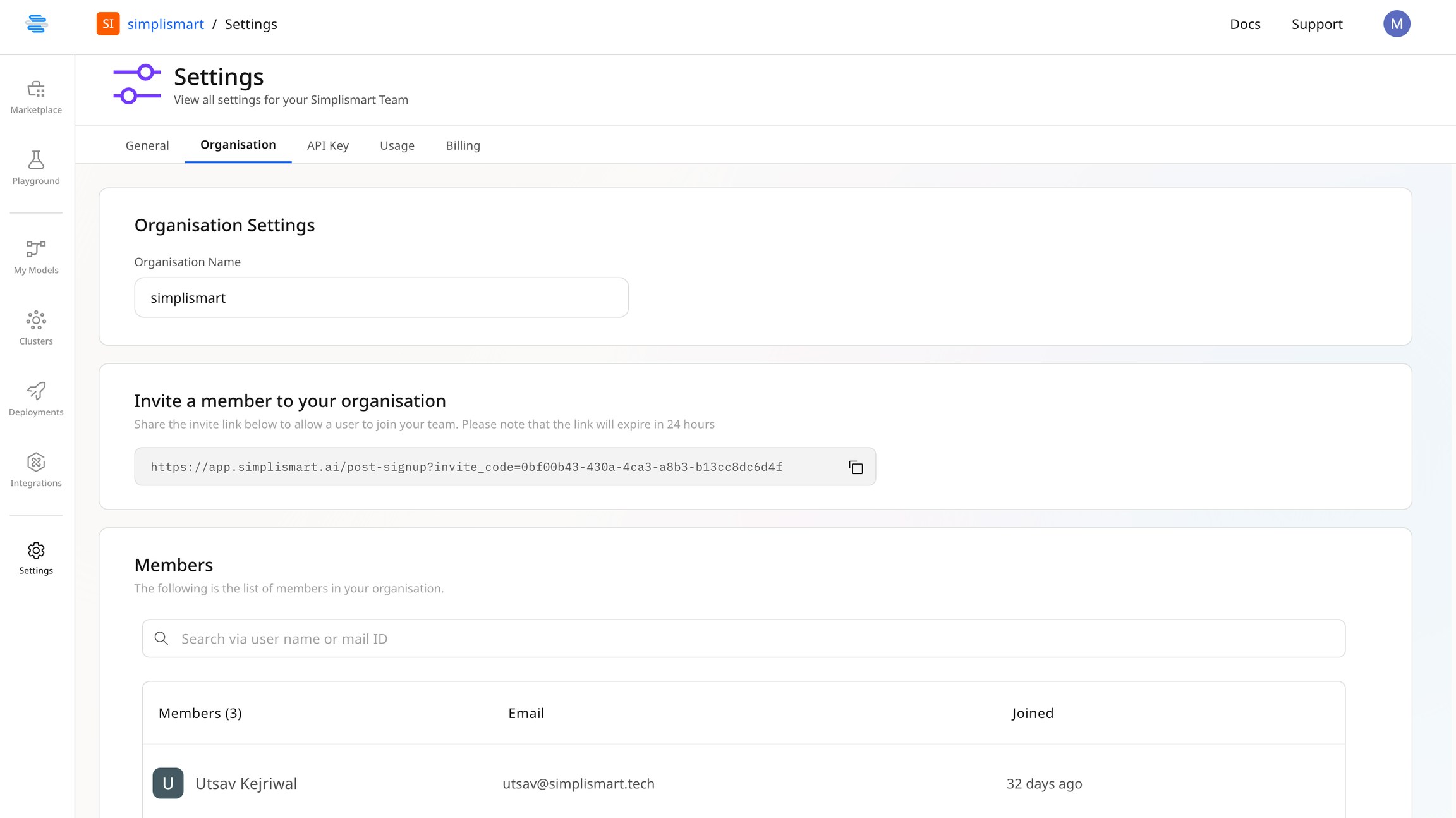
## **Inviting Members to Your Organisation**
* In the Organisations tab, you will find an invitation link to invite new members.
* Share the generated link with the members you want to invite.
 ***
## **Billing Details**
You can add or edit your billing address and billing email by clicking the `Edit` button.
Please ensure all details are accurate, as the billing address will be used for tax and invoice purposes.
Customers with a billing address in India are subject to an **18% GST**, as per applicable tax laws.
***
## **Quota Management**
Each organization is allocated a predefined compute quota to ensure fair resource distribution and efficient job scheduling.
### Default Quotas
By default, every new organization receives:
* **8 × H100 GPUs**
* **8 × L40 GPUs**
**Automatic Quota Release**: Quotas are automatically released once:
* A training or compilation job completes successfully, or
* A job fails and is no longer active
### Requesting Additional Quotas
If your organization requires higher limits for training or compilation workloads, you can request an increase by contacting the support team at [support@simplismart.ai](mailto:support@simplismart.ai).
Requests are reviewed based on usage history, project requirements, and available capacity.
***
## **Organization Management**
* Each user can create up to **2 organizations** per email
* Users can join **unlimited organizations** created by others
### Role-Based Access Control
The platform supports different roles with varying permission levels:
| Role | Permissions |
| ----------------- | ---------------------------------------------------------------------------------- |
| **Billing Users** | View-only access to all sections except for billing details, which they can update |
| **Members** | Full access to all features except user/role management and billing |
| **Admins** | Full administrative access but **cannot delete themselves** |
Users linked to the billing email **cannot be deleted**.
***
## **View Members**
* The screen will also display all members added to your organisation.
***
## **Billing Details**
You can add or edit your billing address and billing email by clicking the `Edit` button.
Please ensure all details are accurate, as the billing address will be used for tax and invoice purposes.
Customers with a billing address in India are subject to an **18% GST**, as per applicable tax laws.
***
## **Quota Management**
Each organization is allocated a predefined compute quota to ensure fair resource distribution and efficient job scheduling.
### Default Quotas
By default, every new organization receives:
* **8 × H100 GPUs**
* **8 × L40 GPUs**
**Automatic Quota Release**: Quotas are automatically released once:
* A training or compilation job completes successfully, or
* A job fails and is no longer active
### Requesting Additional Quotas
If your organization requires higher limits for training or compilation workloads, you can request an increase by contacting the support team at [support@simplismart.ai](mailto:support@simplismart.ai).
Requests are reviewed based on usage history, project requirements, and available capacity.
***
## **Organization Management**
* Each user can create up to **2 organizations** per email
* Users can join **unlimited organizations** created by others
### Role-Based Access Control
The platform supports different roles with varying permission levels:
| Role | Permissions |
| ----------------- | ---------------------------------------------------------------------------------- |
| **Billing Users** | View-only access to all sections except for billing details, which they can update |
| **Members** | Full access to all features except user/role management and billing |
| **Admins** | Full administrative access but **cannot delete themselves** |
Users linked to the billing email **cannot be deleted**.
***
## **View Members**
* The screen will also display all members added to your organisation.