> ## Documentation Index
> Fetch the complete documentation index at: https://docs.simplismart.ai/llms.txt
> Use this file to discover all available pages before exploring further.
# Cloud Accounts
> Steps to guide you through the process of adding your Cloud Accounts.
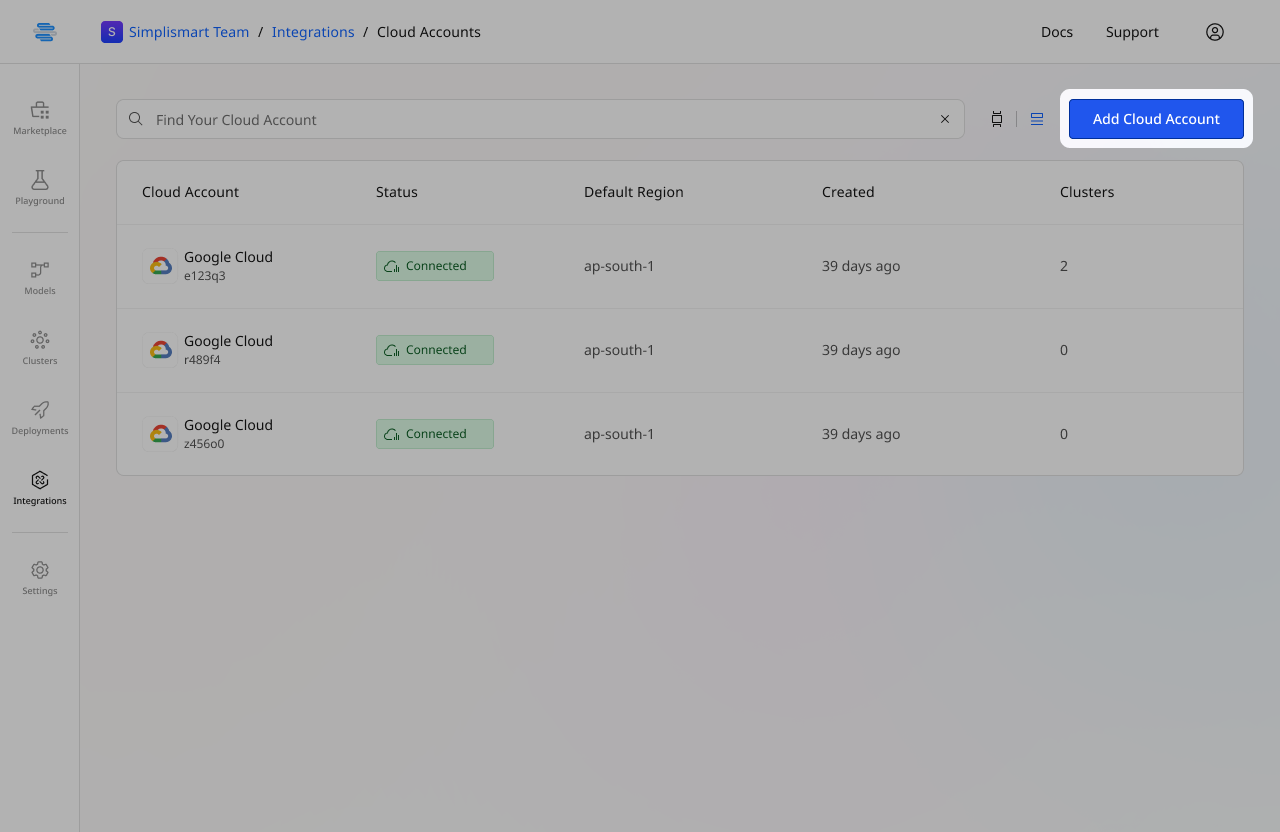
* Navigate to the Integrations tab in the main menu and click on [Cloud Accounts](https://app.simplismart.ai/integrations/cloud-accounts).
* On the Cloud Accounts page, click on the **Add Cloud Account** button.
 ***
## **Enter Cloud Account Details**
* Choose your cloud provider from the list & select the default region for your cloud account.
***
## **Enter Cloud Account Details**
* Choose your cloud provider from the list & select the default region for your cloud account.
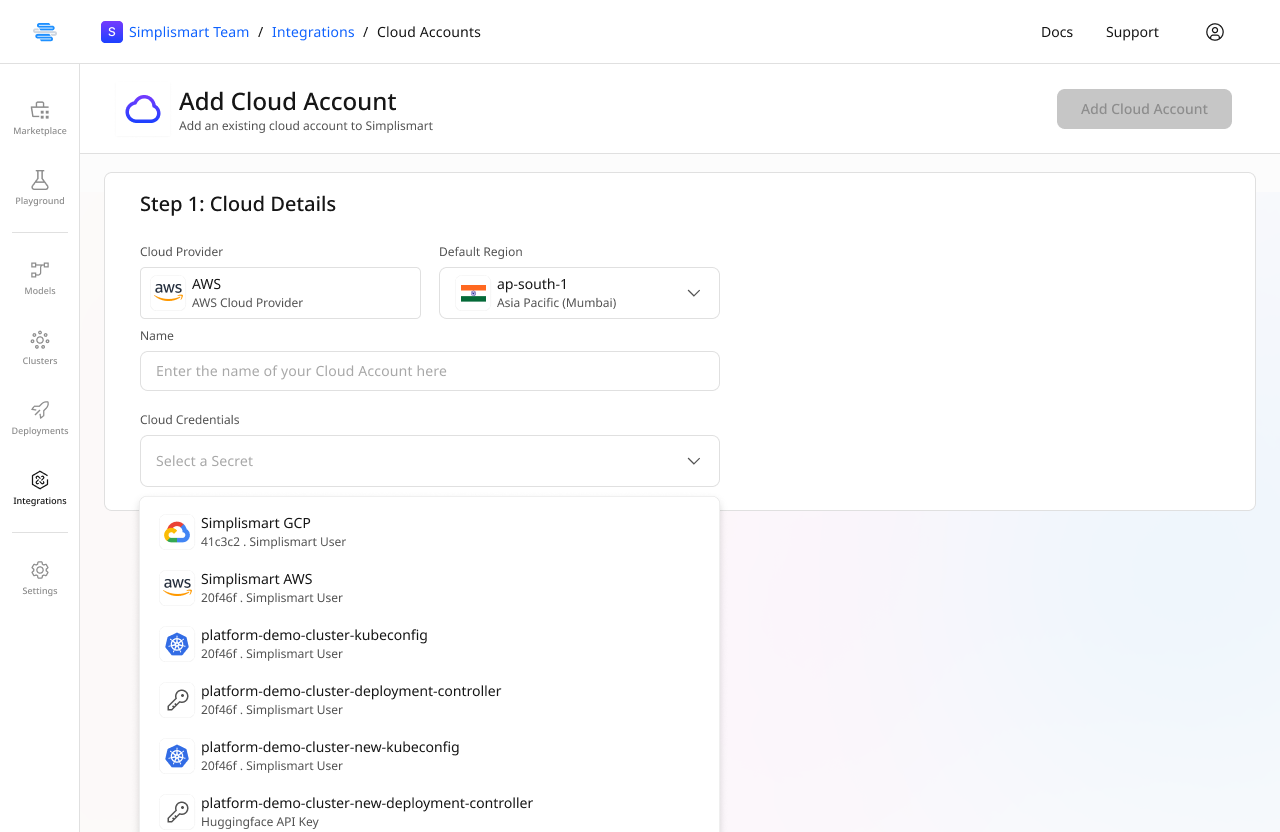 * Provide a name for your cloud account.
* Select the linked cloud credentials from the dropdown menu. (previously added in the [Secrets](/model-suite/integrations/secrets) tab)
* After entering all the necessary details, click the **Add Cloud Account** button to save.
* Your organization’s cloud accounts will now be displayed on the main [**Cloud Accounts**](https://app.simplismart.ai/integrations/cloud-accounts) page.
* Provide a name for your cloud account.
* Select the linked cloud credentials from the dropdown menu. (previously added in the [Secrets](/model-suite/integrations/secrets) tab)
* After entering all the necessary details, click the **Add Cloud Account** button to save.
* Your organization’s cloud accounts will now be displayed on the main [**Cloud Accounts**](https://app.simplismart.ai/integrations/cloud-accounts) page.