> ## Documentation Index
> Fetch the complete documentation index at: https://docs.simplismart.ai/llms.txt
> Use this file to discover all available pages before exploring further.
# Editing a Deployment
> Guide to editing existing deployments on Simplismart
The Edit Deployment feature allows you to adjust parameters such as scaling, models, or tags without needing to redeploy from scratch.
Deployment edits are applied as **rolling updates** to minimize downtime while changes are being applied.
## Accessing the Edit Feature
Any successfully deployed model can be edited:
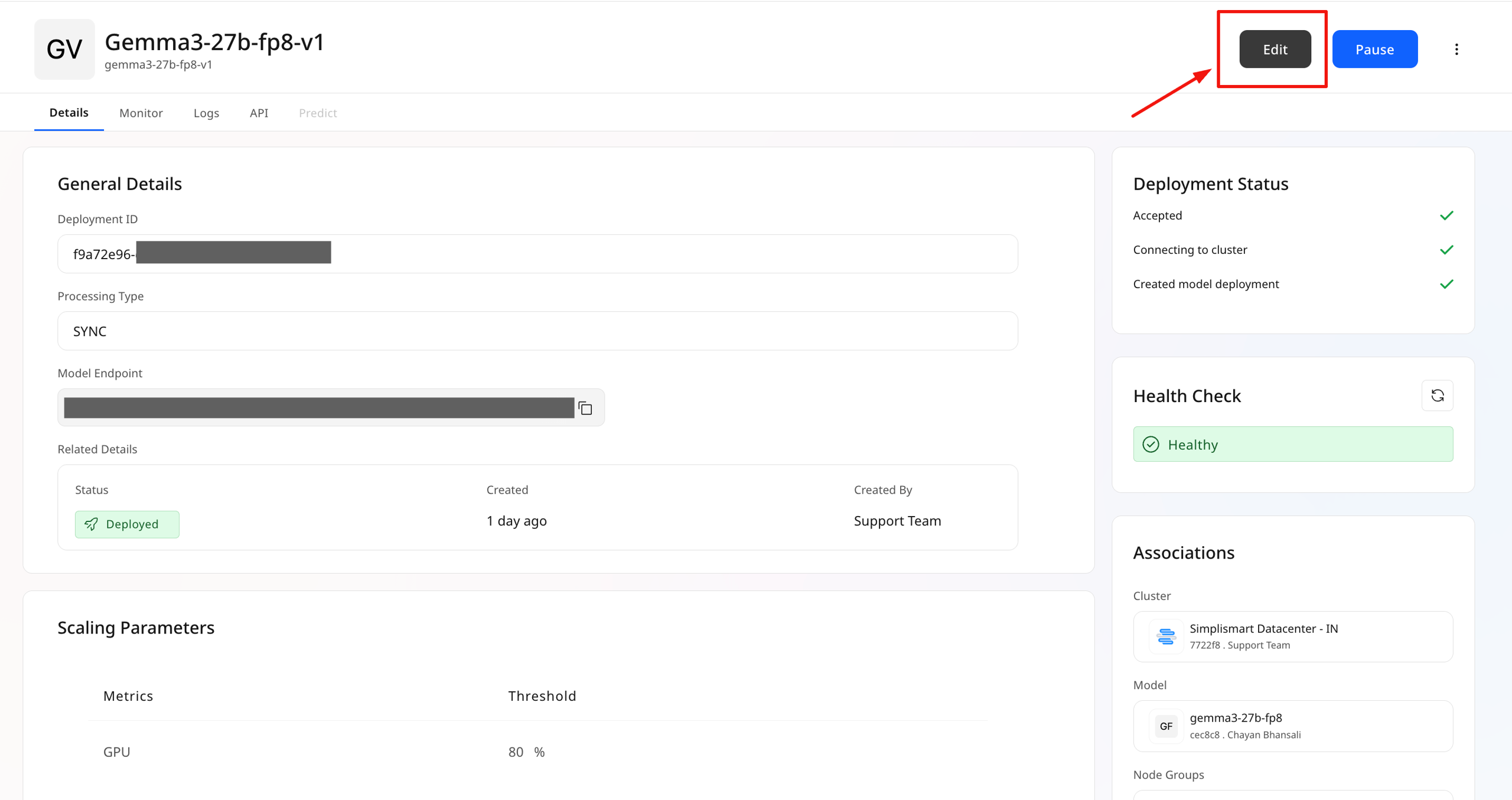
1. Go to **Deployments** from the left sidebar
2. Select the deployment you want to modify
3. You'll be taken to the deployment details view
Click the **Edit** button located in the top-right corner of the deployment details page.
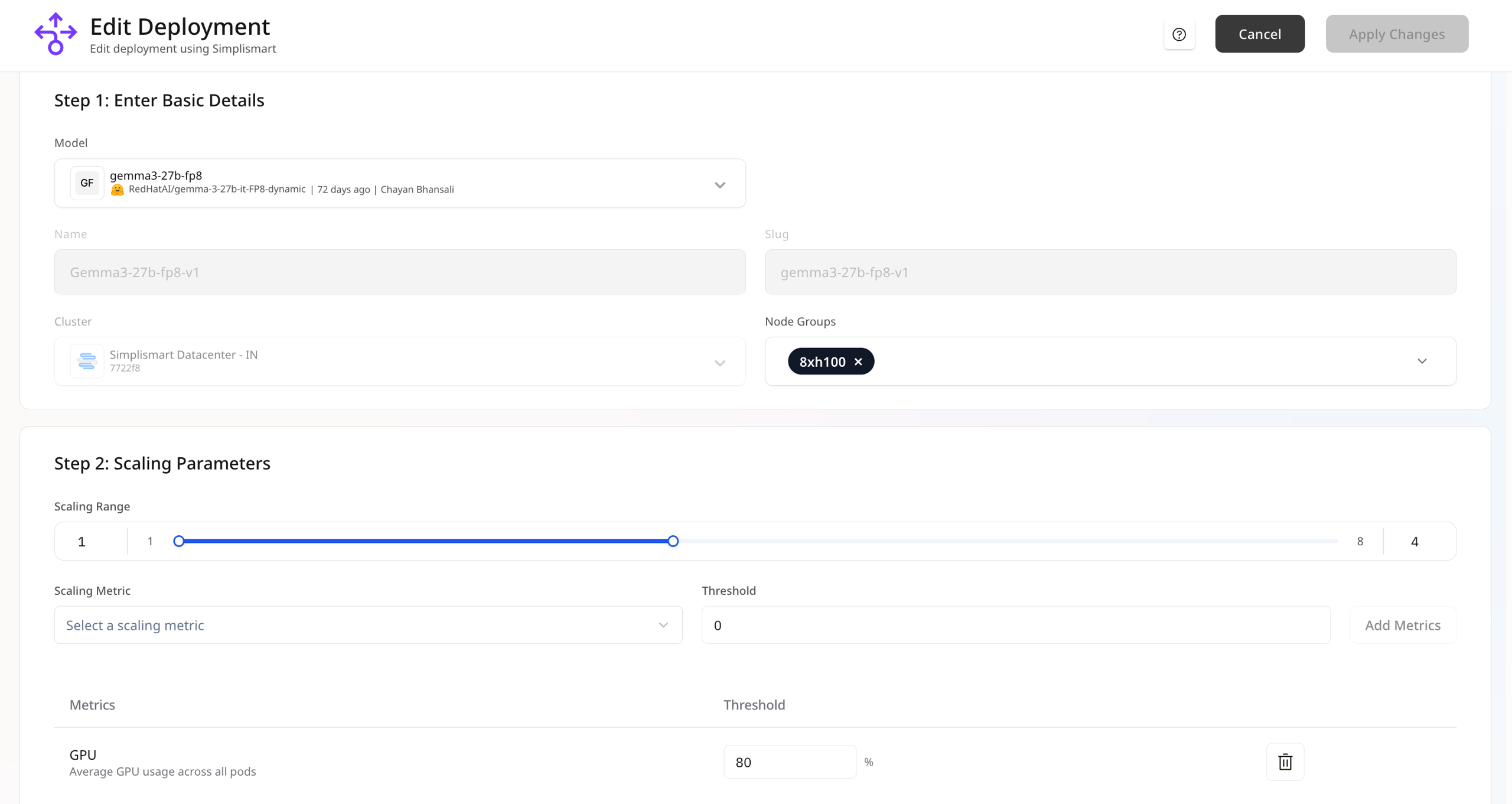
 Update the parameters and click on `Apply Changes` to implement the changes.\\
 ## What Can Be Edited
Understanding which parameters are editable helps you plan deployment updates effectively.
### Editable Parameters
The following parameters can be modified after deployment:
All scaling configurations can be updated:
* **Scaling Range**: Adjust minimum and maximum instance counts
* **Scaling Metrics**: Add, remove, or modify scaling triggers
* **Threshold Values**: Change the values that trigger auto-scaling
Update scaling parameters based on observed traffic patterns to optimize performance and costs.
You can swap the deployed model with important constraints:
* ✅ **Can change**: Different models of the **same type**
* ❌ **Cannot change**: Model type (e.g., LLM to STT)
**Example:**
* ✅ Swap Llama 3.1 8B with Llama 3.1 70B (both LLMs)
* ❌ Swap Llama 3.1 8B with Whisper V3 (different types)
Changing models may require adjustments to your application code if input/output formats differ.
Tags can be freely added, modified, or removed:
* Add new key-value pairs for organization
* Update existing tag values
* Remove obsolete tags
**Common tag use cases:**
* Environment identification (`env: production`)
* Version tracking (`version: v2.1`)
* Cost allocation (`team: ml-engineering`)
### Non-Editable Parameters
The following parameters are **locked** after deployment creation and cannot be changed:
* **Deployment Name**: The unique identifier for your deployment
* **Cloud / Cluster**: The infrastructure where the deployment runs
* **Processing Type**: Sync or Async processing mode
If you need to change non-editable parameters, you'll need to create a new deployment with the desired configuration.
**Warmpool Deployment Limitations:**
* Warmpool deployments cannot be edited at all
* Regular deployments cannot be converted into warmpool deployments
* To modify a warmpool deployment, create a new one with the desired configuration
## Update Process
Deployment edits are applied using a rolling update strategy to minimize downtime:
The system validates your changes before applying them
New configuration is deployed incrementally across instances
Each updated instance is health-checked before proceeding
Once all instances are updated, the deployment is complete
**Expected Behavior During Updates:**
* A small number of requests may be dropped during the rolling update
* Avoid making major updates (such as changing the model or GPU configuration) during high-traffic hours to prevent disruption.
### Automatic Rollback
The platform includes built-in safety mechanisms:
* ✅ **Automatic rollback**: If an edit fails, the system automatically reverts to the previous working version
* ❌ **Manual rollback**: Not currently supported after successful edits
* 🔍 **Health monitoring**: Continuous checks ensure deployment stability
Monitor your deployment's health metrics during and after edits to quickly identify any issues.
## Troubleshooting
Common issues and solutions when editing deployments:
| Issue | Cause | Solution |
| --------------------------------------------------- | ------------------------------------------------ | --------------------------------------------------------------------------------------------------------------------------------------------------------------------------------------------------------------------------------------------------------------------- |
| **`Edit Failed due to Validation Error`** | Invalid configuration or incompatible parameters | • Review error message for specific issues
## What Can Be Edited
Understanding which parameters are editable helps you plan deployment updates effectively.
### Editable Parameters
The following parameters can be modified after deployment:
All scaling configurations can be updated:
* **Scaling Range**: Adjust minimum and maximum instance counts
* **Scaling Metrics**: Add, remove, or modify scaling triggers
* **Threshold Values**: Change the values that trigger auto-scaling
Update scaling parameters based on observed traffic patterns to optimize performance and costs.
You can swap the deployed model with important constraints:
* ✅ **Can change**: Different models of the **same type**
* ❌ **Cannot change**: Model type (e.g., LLM to STT)
**Example:**
* ✅ Swap Llama 3.1 8B with Llama 3.1 70B (both LLMs)
* ❌ Swap Llama 3.1 8B with Whisper V3 (different types)
Changing models may require adjustments to your application code if input/output formats differ.
Tags can be freely added, modified, or removed:
* Add new key-value pairs for organization
* Update existing tag values
* Remove obsolete tags
**Common tag use cases:**
* Environment identification (`env: production`)
* Version tracking (`version: v2.1`)
* Cost allocation (`team: ml-engineering`)
### Non-Editable Parameters
The following parameters are **locked** after deployment creation and cannot be changed:
* **Deployment Name**: The unique identifier for your deployment
* **Cloud / Cluster**: The infrastructure where the deployment runs
* **Processing Type**: Sync or Async processing mode
If you need to change non-editable parameters, you'll need to create a new deployment with the desired configuration.
**Warmpool Deployment Limitations:**
* Warmpool deployments cannot be edited at all
* Regular deployments cannot be converted into warmpool deployments
* To modify a warmpool deployment, create a new one with the desired configuration
## Update Process
Deployment edits are applied using a rolling update strategy to minimize downtime:
The system validates your changes before applying them
New configuration is deployed incrementally across instances
Each updated instance is health-checked before proceeding
Once all instances are updated, the deployment is complete
**Expected Behavior During Updates:**
* A small number of requests may be dropped during the rolling update
* Avoid making major updates (such as changing the model or GPU configuration) during high-traffic hours to prevent disruption.
### Automatic Rollback
The platform includes built-in safety mechanisms:
* ✅ **Automatic rollback**: If an edit fails, the system automatically reverts to the previous working version
* ❌ **Manual rollback**: Not currently supported after successful edits
* 🔍 **Health monitoring**: Continuous checks ensure deployment stability
Monitor your deployment's health metrics during and after edits to quickly identify any issues.
## Troubleshooting
Common issues and solutions when editing deployments:
| Issue | Cause | Solution |
| --------------------------------------------------- | ------------------------------------------------ | --------------------------------------------------------------------------------------------------------------------------------------------------------------------------------------------------------------------------------------------------------------------- |
| **`Edit Failed due to Validation Error`** | Invalid configuration or incompatible parameters | • Review error message for specific issues
• Verify model compatibility
• Check scaling parameter ranges |
| **`Edit Failed due to Resource Unavailable Error`** | Requested resources (GPUs) not available | • Choose a different accelerator type
• Reduce instance count
• Try again during off-peak hours
• Contact [support](https://support.simplismart.ai/support/tickets/new) for resource availability |
| **Deployment Unstable After Edit** | New configuration causing issues | • System should auto-rollback if health checks fail
• If not, create a new deployment with previous configuration
• Review deployment logs for error details
• Contact [support](https://support.simplismart.ai/support/tickets/new) if issues persist |