> ## Documentation Index
> Fetch the complete documentation index at: https://docs.simplismart.ai/llms.txt
> Use this file to discover all available pages before exploring further.
# Import a Kubernetes Cluster
> Learn how to import your existing Kubernetes cluster into the Simplismart platform
This guide walks you through the process of importing your existing Kubernetes cluster into Simplismart. Before proceeding, ensure your cluster meets the [cloud-specific prerequisites](/model-suite/clusters/import-cluster/e2e-cloud-prerquisites).
## Prerequisites
Before importing your cluster, make sure you have:
* A Kubernetes cluster that meets the cloud-specific requirements
* Administrative access to create secrets and configure node groups
* Your cluster credentials and configuration details
## Step 1: Create a Kubernetes Secret
To securely connect Simplismart to your cluster, you'll need to create a Kubernetes secret:
1. Navigate to the [Secrets](/model-suite/integrations/secrets) tab in the sidebar
2. Click **Create Secret** and select the type as Kubernetes.
3. Enter your cluster credentials and configuration
Ensure your secrets are formatted correctly. Refer to the [Cloud specific format guide](/model-suite/integrations/secrets#json-format-for-adding-secrets) for proper structure.
## Step 2: Import the Cluster
Now you're ready to import your cluster into Simplismart:
1. Navigate to the **Clusters** tab
2. Click **Import Cluster**
3. Fill in the required information:
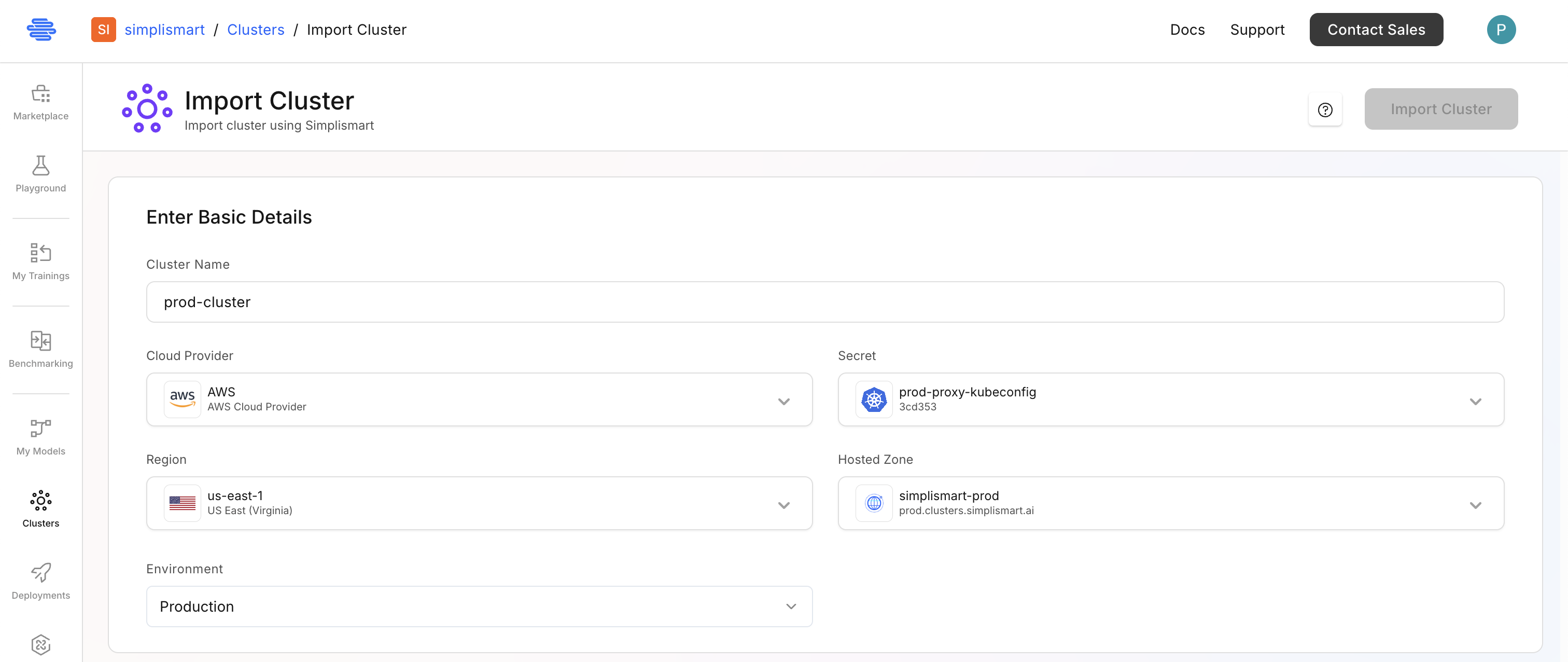
### Basic Configuration
* **Cluster Name**: Provide a descriptive name for your cluster
* **Cloud Provider**: Select your cloud provider (AWS, GCP, Azure, OCI, etc.)
* **Region**: Specify the region where your cluster is hosted
* **Secret**: Choose the Kubernetes secret you created in Step 1
* **Environment**: Select your deployment environment:
* `Development`
* `Production`
* `Demo Environment`
* `Others`
 ## Step 3: Configure Cluster Tools
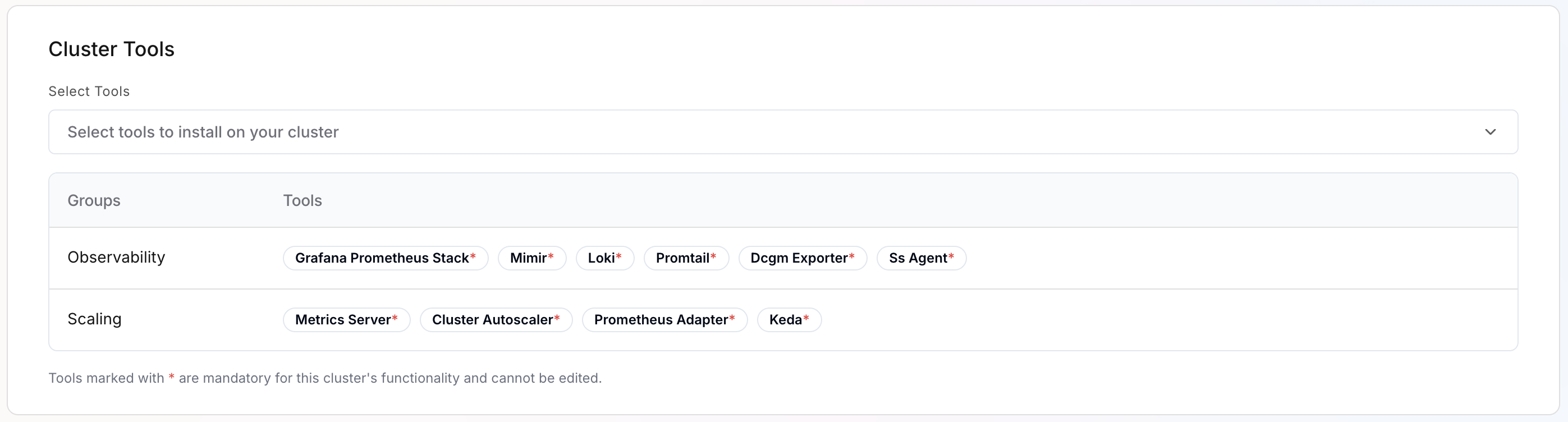
Select the appropriate tools based on your use case:
* **Training Tools**: For model training jobs
* **Observability Tools**: For monitoring and logging
* **Async Tools**: For asynchronous task management
* **Scaling Tools**: For auto-scaling capabilities
## Step 3: Configure Cluster Tools
Select the appropriate tools based on your use case:
* **Training Tools**: For model training jobs
* **Observability Tools**: For monitoring and logging
* **Async Tools**: For asynchronous task management
* **Scaling Tools**: For auto-scaling capabilities
 ## Step 4: Register Node Groups
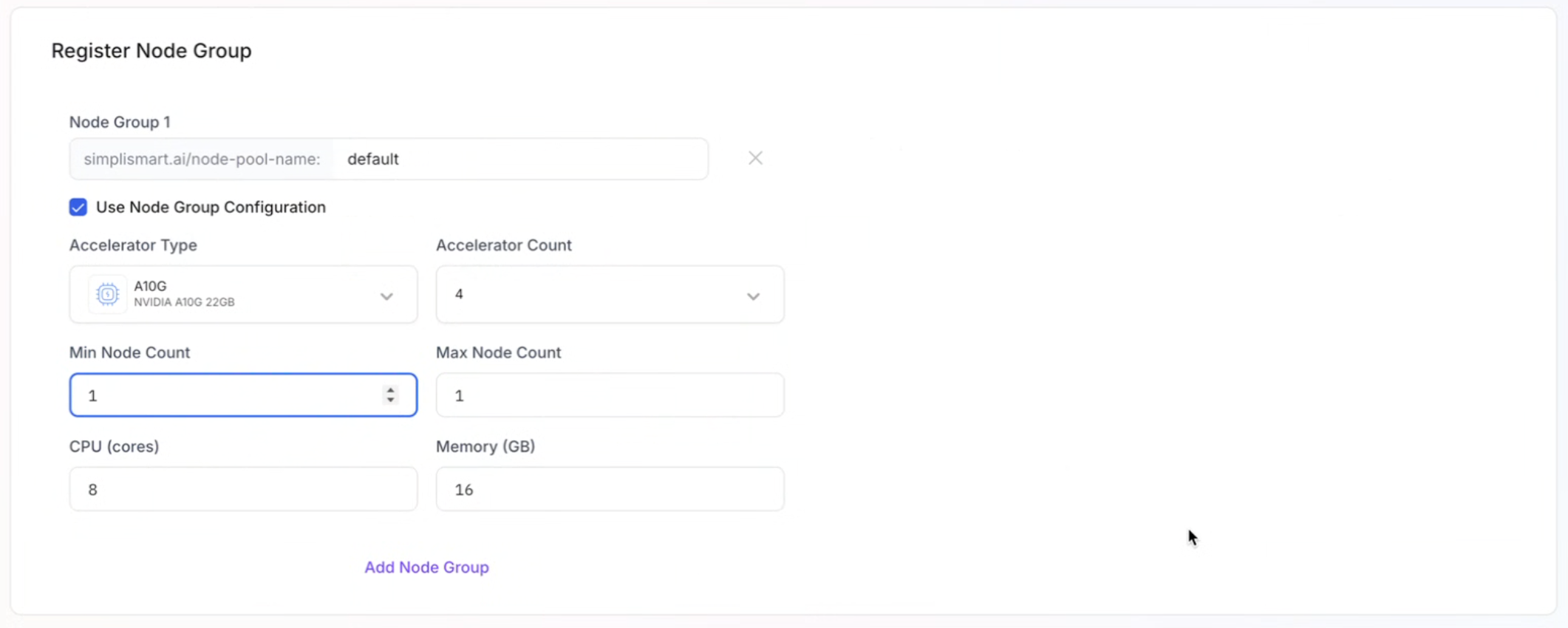
Configure your node groups to define the compute resources available for deployments.
### Node Group Labels
Provide the labels that identify your node groups:
* Use the format: `simplismart.ai/node-group:`
* These labels must match the labels applied to your nodes in the existing cluster
* Labels help Simplismart understand how to organize and schedule workloads
### Node Configuration
Specify the following details for each node group:
**GPU Configuration**
* **GPU Type**: Select the GPU model available on your node group (e.g., A100, V100, T4)
* **GPU Count**: Number of GPUs attached to each node
**Scaling Configuration**
* **Minimum Nodes**: Minimum number of nodes in the group
* **Maximum Nodes**: Maximum number of nodes for auto-scaling
**Resource Allocation**
* **vCPU**: Number of virtual CPUs available per node
* **Memory**: Amount of RAM available per node (in GB)
The vCPU and memory values are critical as they determine the maximum resources that can be allocated during deployments on your cluster. Ensure these values accurately reflect your node specifications.
## Step 4: Register Node Groups
Configure your node groups to define the compute resources available for deployments.
### Node Group Labels
Provide the labels that identify your node groups:
* Use the format: `simplismart.ai/node-group:`
* These labels must match the labels applied to your nodes in the existing cluster
* Labels help Simplismart understand how to organize and schedule workloads
### Node Configuration
Specify the following details for each node group:
**GPU Configuration**
* **GPU Type**: Select the GPU model available on your node group (e.g., A100, V100, T4)
* **GPU Count**: Number of GPUs attached to each node
**Scaling Configuration**
* **Minimum Nodes**: Minimum number of nodes in the group
* **Maximum Nodes**: Maximum number of nodes for auto-scaling
**Resource Allocation**
* **vCPU**: Number of virtual CPUs available per node
* **Memory**: Amount of RAM available per node (in GB)
The vCPU and memory values are critical as they determine the maximum resources that can be allocated during deployments on your cluster. Ensure these values accurately reflect your node specifications.
 ## Step 5: Automated Dependency Deployment
Once you complete the import process, Simplismart automatically deploys essential infrastructure components to your cluster:
* **Deployment Controller**: Manages model deployment lifecycle
* **Cert Manager**: Handles TLS certificates
* **NGINX Ingress Controller**: Routes external traffic to your deployments
* **Additional Dependencies**: Other tooling required for platform operations
## Frequently Asked Questions
The cluster import will fail if your secret is improperly formatted. Follow the [cloud-specific format guide](/model-suite/integrations/secrets#json-format-for-adding-secrets) and ensure all required fields (tokens, certificates, keys) match the expected structure for your cloud provider.
To delete a cluster, contact [support@simplismart.ai](mailto:support@simplismart.ai). During deletion:
* All tools installed by Simplismart will be removed from your cluster
* Your cluster will continue running on your original cloud platform
* Only the Simplismart integration components are removed
Simplismart will not be able to detect your node groups. Each node must have the label in the following format:
```
simplismart.ai/node-group:
```
Apply these labels to your nodes before importing the cluster to ensure proper node group detection.
No, node group configurations cannot be modified after import. The following settings are locked during the import process:
* GPU type
* GPU count per node
* vCPU allocation
* Memory allocation
* Scaling limits (min/max nodes)
If you need to change these settings, you'll need to reimport the cluster.
Mismatched configurations can cause serious issues:
* Deployment scheduling failures
* Incorrect resource allocation
* Under or over-provisioning of resources
Always enter the exact specifications of your cluster nodes to ensure accurate resource management and scheduling.
Simplismart automatically deploys the following essential components to your cluster:
* **Deployment Controller**: Manages model deployment lifecycle
* **Cert Manager**: Handles TLS certificate management
* **NGINX Ingress Controller**: Routes external traffic to deployments
* **Additional infrastructure components**: Required for platform operations
These tools are mandatory and cannot be skipped during the import process.
The automated deployment process typically takes 5-10 minutes. Monitor the progress in the Clusters dashboard.
Simplismart installs its own versions of these tools. If your cluster has conflicting versions, you may experience issues with:
* Traffic routing
* TLS certificate management
* Deployment orchestration
**Best Practice**: Isolate Simplismart's tools in separate namespaces to prevent conflicts with your existing infrastructure.
For each node group, you must specify:
* **GPU Type**: The GPU model installed (e.g., A100, V100, T4, A10, H100)
* **GPU Count**: Number of GPUs attached to each node
This information determines which models can be scheduled on your cluster and ensures optimal resource allocation.
Yes, you can import a CPU-only cluster. However:
* GPU-accelerated model deployments will not be possible
* You can only deploy CPU-based models
* GPU node groups can only be added during the initial import, not afterward
If you plan to deploy GPU models in the future, ensure you include GPU node groups during the import process.
Common mistakes to avoid:
* **Mixed authentication methods**: Don't combine token and certificate-based authentication in secrets
* **Incorrect node specifications**: Ensure vCPU, memory, and GPU counts match your actual nodes
* **Missing node labels**: All nodes must have the required `simplismart.ai/node-group` labels
* **Expired credentials**: Verify your cluster credentials are current and valid
* **Mismatched regions**: Ensure the region specified matches your cluster's actual location
Once the import is successful, your cluster becomes fully operational in Simplismart. You can:
* [Deploy models](/model-suite/deployments/deploy-on-an-imported-cluster) to your imported cluster
* Monitor cluster health and resource utilization
* View deployment logs and metrics
* Scale your deployments based on configured node groups
Note that node group configurations are locked after import and cannot be modified later.
## Next Steps
After successfully importing your cluster, you can:
* [Deploy models](/model-suite/deployments/deploy-on-an-imported-cluster) on your imported cluster
* Configure additional node groups as needed
* Set up monitoring and observability tools
* Manage cluster resources and scaling policies
## Step 5: Automated Dependency Deployment
Once you complete the import process, Simplismart automatically deploys essential infrastructure components to your cluster:
* **Deployment Controller**: Manages model deployment lifecycle
* **Cert Manager**: Handles TLS certificates
* **NGINX Ingress Controller**: Routes external traffic to your deployments
* **Additional Dependencies**: Other tooling required for platform operations
## Frequently Asked Questions
The cluster import will fail if your secret is improperly formatted. Follow the [cloud-specific format guide](/model-suite/integrations/secrets#json-format-for-adding-secrets) and ensure all required fields (tokens, certificates, keys) match the expected structure for your cloud provider.
To delete a cluster, contact [support@simplismart.ai](mailto:support@simplismart.ai). During deletion:
* All tools installed by Simplismart will be removed from your cluster
* Your cluster will continue running on your original cloud platform
* Only the Simplismart integration components are removed
Simplismart will not be able to detect your node groups. Each node must have the label in the following format:
```
simplismart.ai/node-group:
```
Apply these labels to your nodes before importing the cluster to ensure proper node group detection.
No, node group configurations cannot be modified after import. The following settings are locked during the import process:
* GPU type
* GPU count per node
* vCPU allocation
* Memory allocation
* Scaling limits (min/max nodes)
If you need to change these settings, you'll need to reimport the cluster.
Mismatched configurations can cause serious issues:
* Deployment scheduling failures
* Incorrect resource allocation
* Under or over-provisioning of resources
Always enter the exact specifications of your cluster nodes to ensure accurate resource management and scheduling.
Simplismart automatically deploys the following essential components to your cluster:
* **Deployment Controller**: Manages model deployment lifecycle
* **Cert Manager**: Handles TLS certificate management
* **NGINX Ingress Controller**: Routes external traffic to deployments
* **Additional infrastructure components**: Required for platform operations
These tools are mandatory and cannot be skipped during the import process.
The automated deployment process typically takes 5-10 minutes. Monitor the progress in the Clusters dashboard.
Simplismart installs its own versions of these tools. If your cluster has conflicting versions, you may experience issues with:
* Traffic routing
* TLS certificate management
* Deployment orchestration
**Best Practice**: Isolate Simplismart's tools in separate namespaces to prevent conflicts with your existing infrastructure.
For each node group, you must specify:
* **GPU Type**: The GPU model installed (e.g., A100, V100, T4, A10, H100)
* **GPU Count**: Number of GPUs attached to each node
This information determines which models can be scheduled on your cluster and ensures optimal resource allocation.
Yes, you can import a CPU-only cluster. However:
* GPU-accelerated model deployments will not be possible
* You can only deploy CPU-based models
* GPU node groups can only be added during the initial import, not afterward
If you plan to deploy GPU models in the future, ensure you include GPU node groups during the import process.
Common mistakes to avoid:
* **Mixed authentication methods**: Don't combine token and certificate-based authentication in secrets
* **Incorrect node specifications**: Ensure vCPU, memory, and GPU counts match your actual nodes
* **Missing node labels**: All nodes must have the required `simplismart.ai/node-group` labels
* **Expired credentials**: Verify your cluster credentials are current and valid
* **Mismatched regions**: Ensure the region specified matches your cluster's actual location
Once the import is successful, your cluster becomes fully operational in Simplismart. You can:
* [Deploy models](/model-suite/deployments/deploy-on-an-imported-cluster) to your imported cluster
* Monitor cluster health and resource utilization
* View deployment logs and metrics
* Scale your deployments based on configured node groups
Note that node group configurations are locked after import and cannot be modified later.
## Next Steps
After successfully importing your cluster, you can:
* [Deploy models](/model-suite/deployments/deploy-on-an-imported-cluster) on your imported cluster
* Configure additional node groups as needed
* Set up monitoring and observability tools
* Manage cluster resources and scaling policies