> ## Documentation Index
> Fetch the complete documentation index at: https://docs.simplismart.ai/llms.txt
> Use this file to discover all available pages before exploring further.
# Performance Benchmarking
> Set up and run load tests to evaluate LLM deployment speed, throughput, and scalability using chat datasets.
# Creating a Performance Benchmark
## Start a New Benchmark
1. Go to **Benchmarking → Create**.
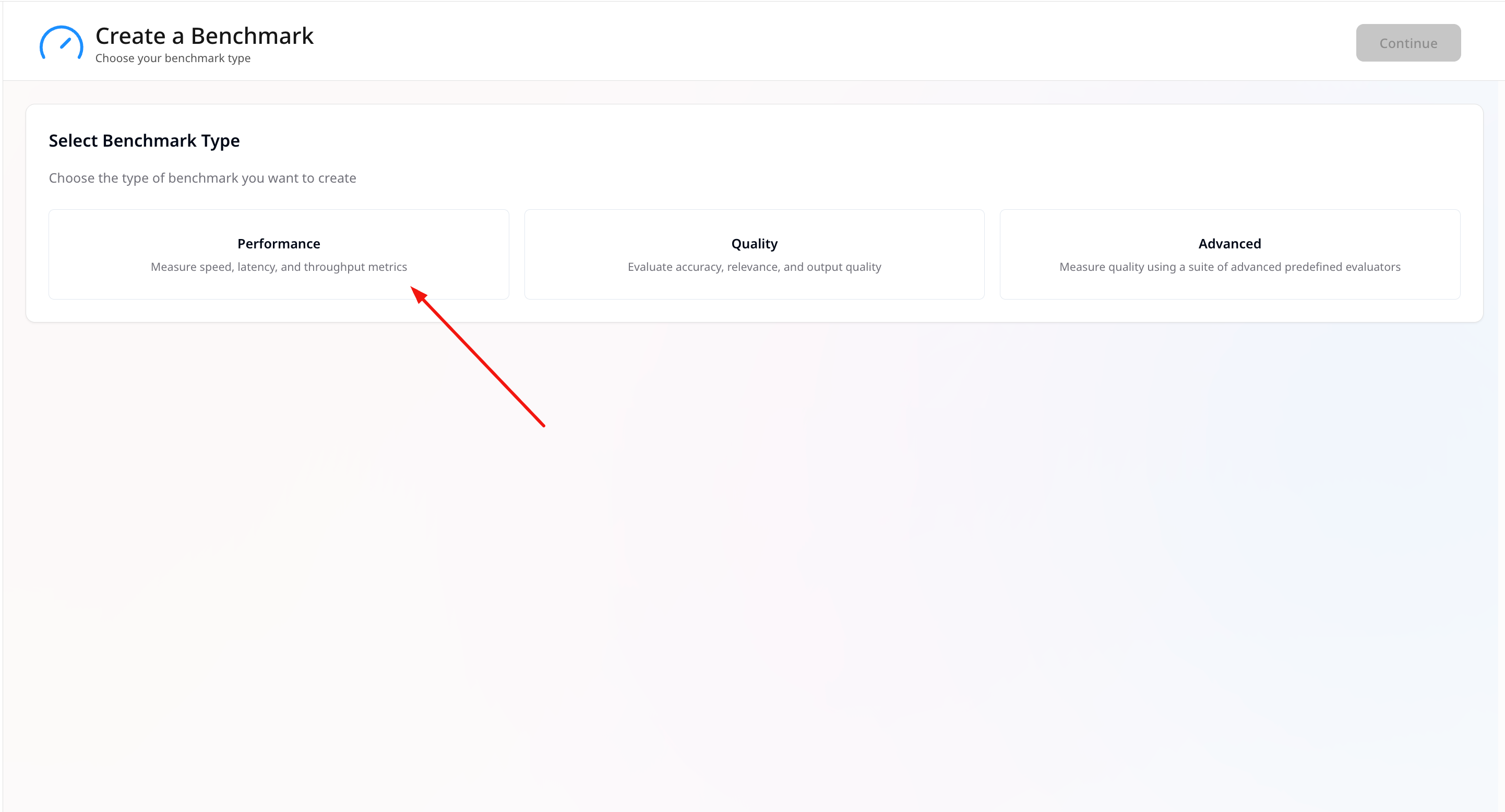
2. Choose **Performance** as the benchmark type.
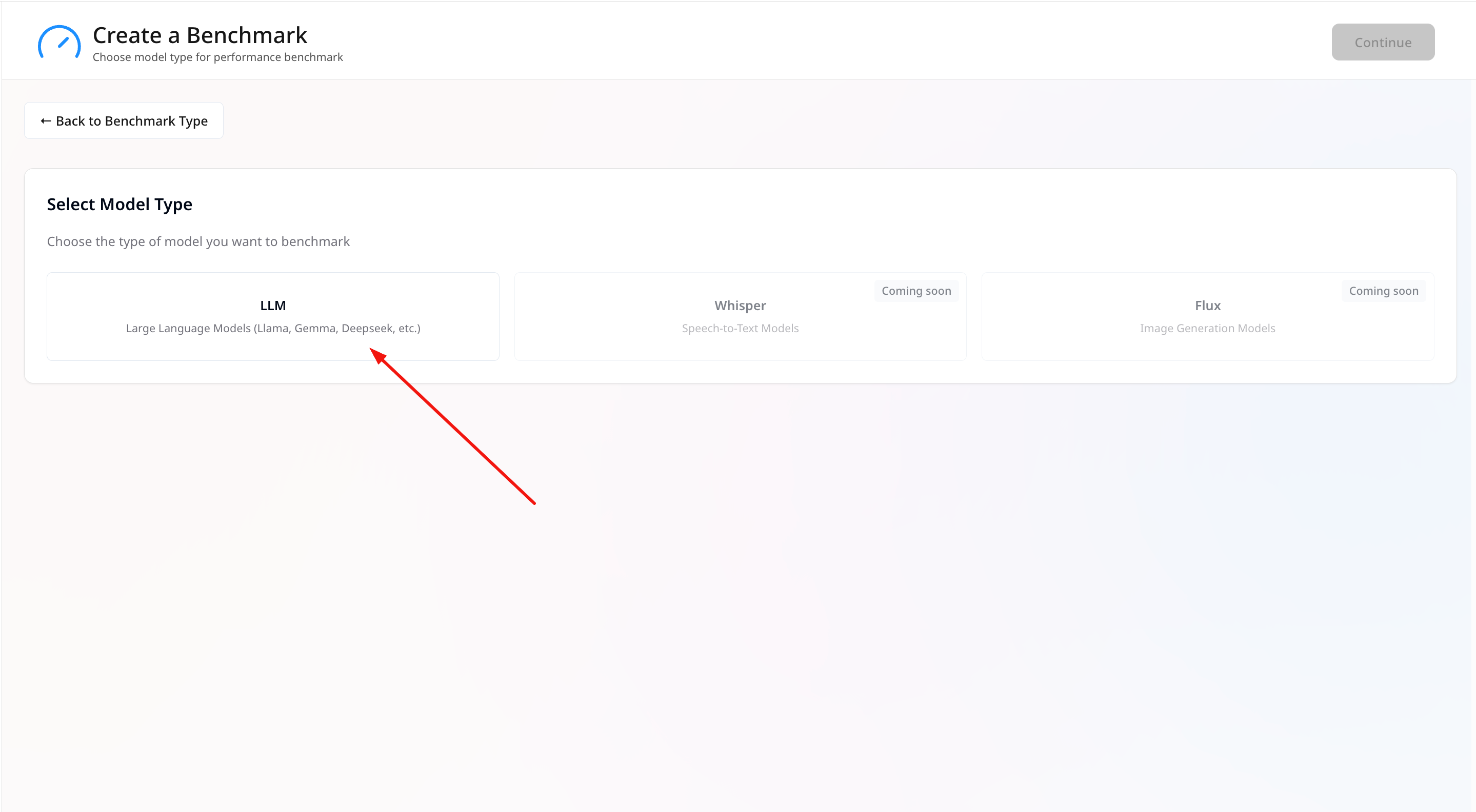
 3. Select **LLM** as the model type.
 ## General Information
* **Benchmark Name** — Give the run a clear, unique name.
* **Select Deployments** — Pick one or more deployments to benchmark.
* **Region** — (Shown in Available Regions) choose where the run executes.
## General Information
* **Benchmark Name** — Give the run a clear, unique name.
* **Select Deployments** — Pick one or more deployments to benchmark.
* **Region** — (Shown in Available Regions) choose where the run executes.
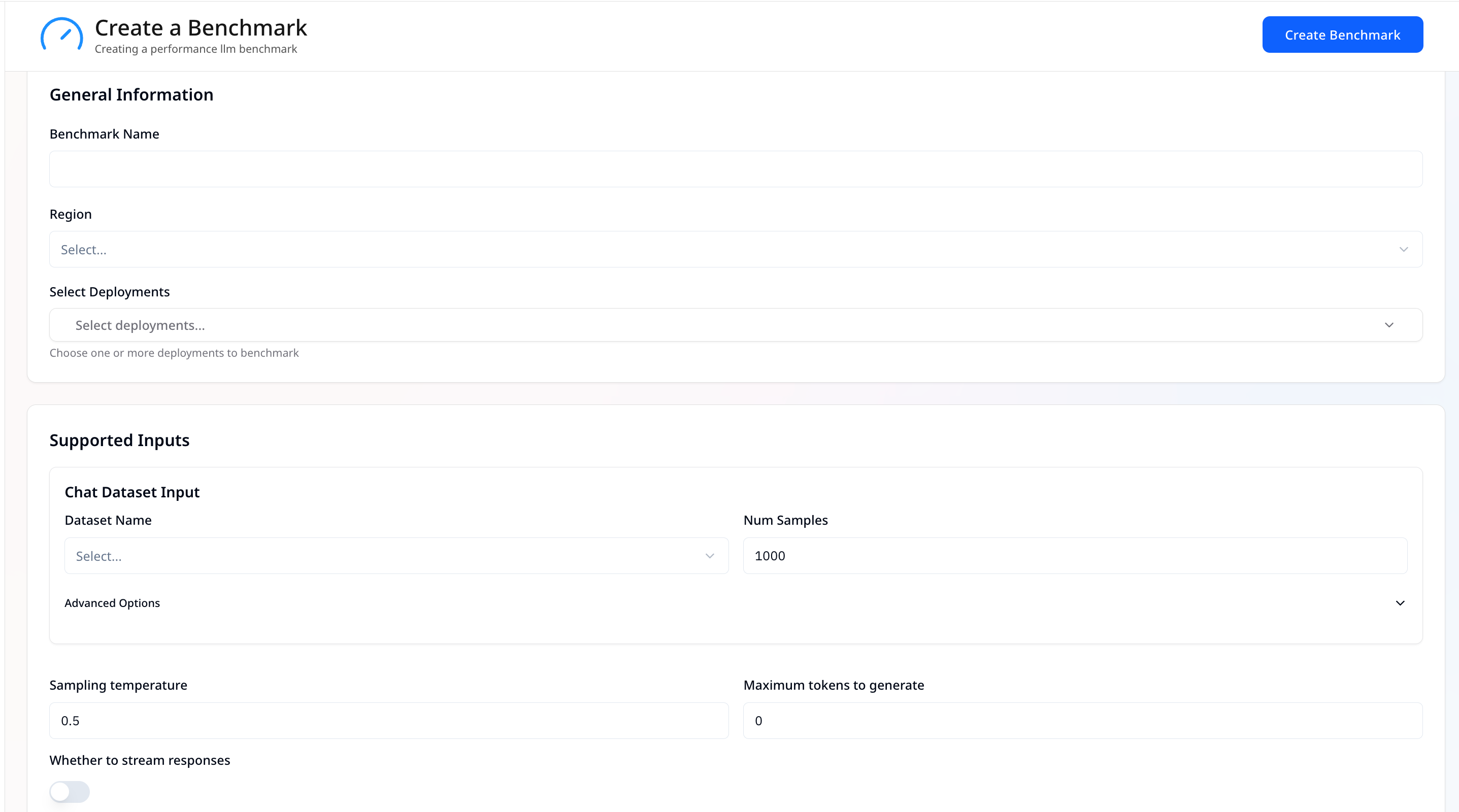 ## Supported Inputs (Chat Dataset Input)
* **Dataset Name** — Choose a dataset (currently we support only *Ultrachat* dataset).
* **Num Samples** — Limit how many rows/samples from the dataset to use.
* **Sampling Temperature** — Set generation randomness between 0 and 1.
* **Maximum tokens to generate** — Sets the upper limit on response length in tokens.
* **Whether to stream responses** — Toggle on/off to stream model outputs during the run.
## Execution Configuration
* **Users** — Number of virtual users to simulate during the benchmark.
* **Duration** — How long the benchmark should run (e.g., 30s).
* **Load Type** — Pattern for load generation (e.g., Constant).
* **Metrics** — Select the metrics to capture (e.g., *throughput*, *ttft*, *tpot*).
## Supported Inputs (Chat Dataset Input)
* **Dataset Name** — Choose a dataset (currently we support only *Ultrachat* dataset).
* **Num Samples** — Limit how many rows/samples from the dataset to use.
* **Sampling Temperature** — Set generation randomness between 0 and 1.
* **Maximum tokens to generate** — Sets the upper limit on response length in tokens.
* **Whether to stream responses** — Toggle on/off to stream model outputs during the run.
## Execution Configuration
* **Users** — Number of virtual users to simulate during the benchmark.
* **Duration** — How long the benchmark should run (e.g., 30s).
* **Load Type** — Pattern for load generation (e.g., Constant).
* **Metrics** — Select the metrics to capture (e.g., *throughput*, *ttft*, *tpot*).
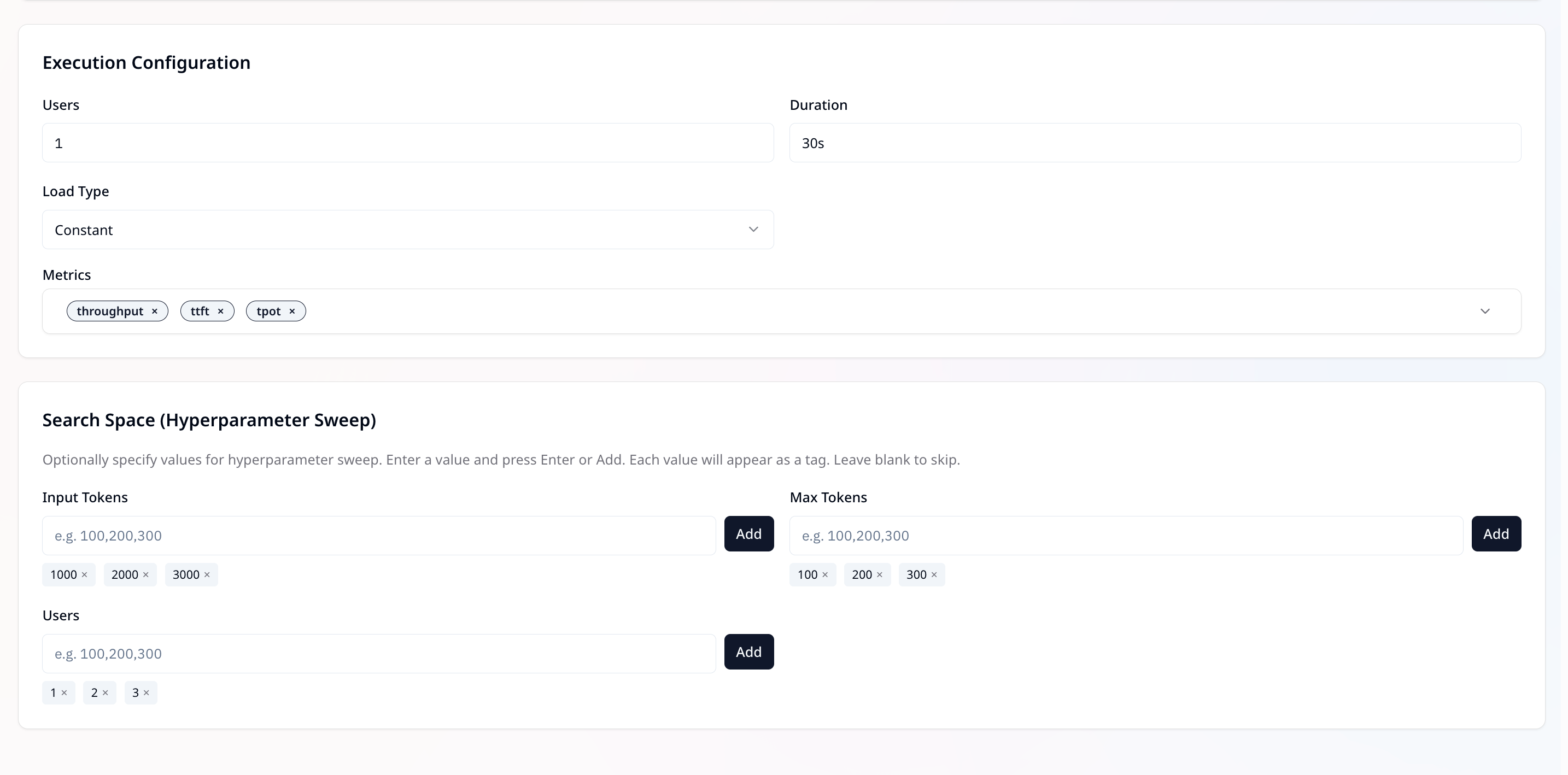 ## Search Space (Hyperparameter Sweep)
**Search Space** allows you to run the same benchmark multiple times with different parameter values, so you can compare how deployments behave under varied conditions.
Instead of running separate benchmarks manually, you can provide multiple values and the suite will automatically generate runs for each combination.
* `inputs[name=messages].preprocess.input_tokens` — Vary the input size (number of tokens in the prompt).\
**Example**: `1000`, `2000`, `3000`.
* `inputs[name=max_tokens].value` — Vary the maximum output length.\
**Example**: `100`, `200`, `300`.
* `execution.profile.users` — Vary the number of concurrent users.\
**Example**: `1`, `2`, `3`.
**Example**:\
If you specify `input_tokens: [1000,2000]` and `users: [1,2]`, the suite will generate 4 runs:
* `1000×1`, `1000×2`, `2000×1`, `2000×2`.
> Type a value and press `Enter` or `Add` — values appear as tags. Leave blank to skip.
## Run the Benchmark
Click **Create Benchmark**.
The run is queued and executed in the selected **Region** with the chosen **metrics** and **sweep settings**.
## Search Space (Hyperparameter Sweep)
**Search Space** allows you to run the same benchmark multiple times with different parameter values, so you can compare how deployments behave under varied conditions.
Instead of running separate benchmarks manually, you can provide multiple values and the suite will automatically generate runs for each combination.
* `inputs[name=messages].preprocess.input_tokens` — Vary the input size (number of tokens in the prompt).\
**Example**: `1000`, `2000`, `3000`.
* `inputs[name=max_tokens].value` — Vary the maximum output length.\
**Example**: `100`, `200`, `300`.
* `execution.profile.users` — Vary the number of concurrent users.\
**Example**: `1`, `2`, `3`.
**Example**:\
If you specify `input_tokens: [1000,2000]` and `users: [1,2]`, the suite will generate 4 runs:
* `1000×1`, `1000×2`, `2000×1`, `2000×2`.
> Type a value and press `Enter` or `Add` — values appear as tags. Leave blank to skip.
## Run the Benchmark
Click **Create Benchmark**.
The run is queued and executed in the selected **Region** with the chosen **metrics** and **sweep settings**.